
Leave Request App for Power Apps
A finished time off app that runs on your SharePoint: everyone sees their days left and asks for time off in one sheet, approvers decide with the balance in front of them, and a team calendar shows who is away. A flow creates the lists for you. Scroll to see what your team gets, then set it up in five steps.
View 1 of 5
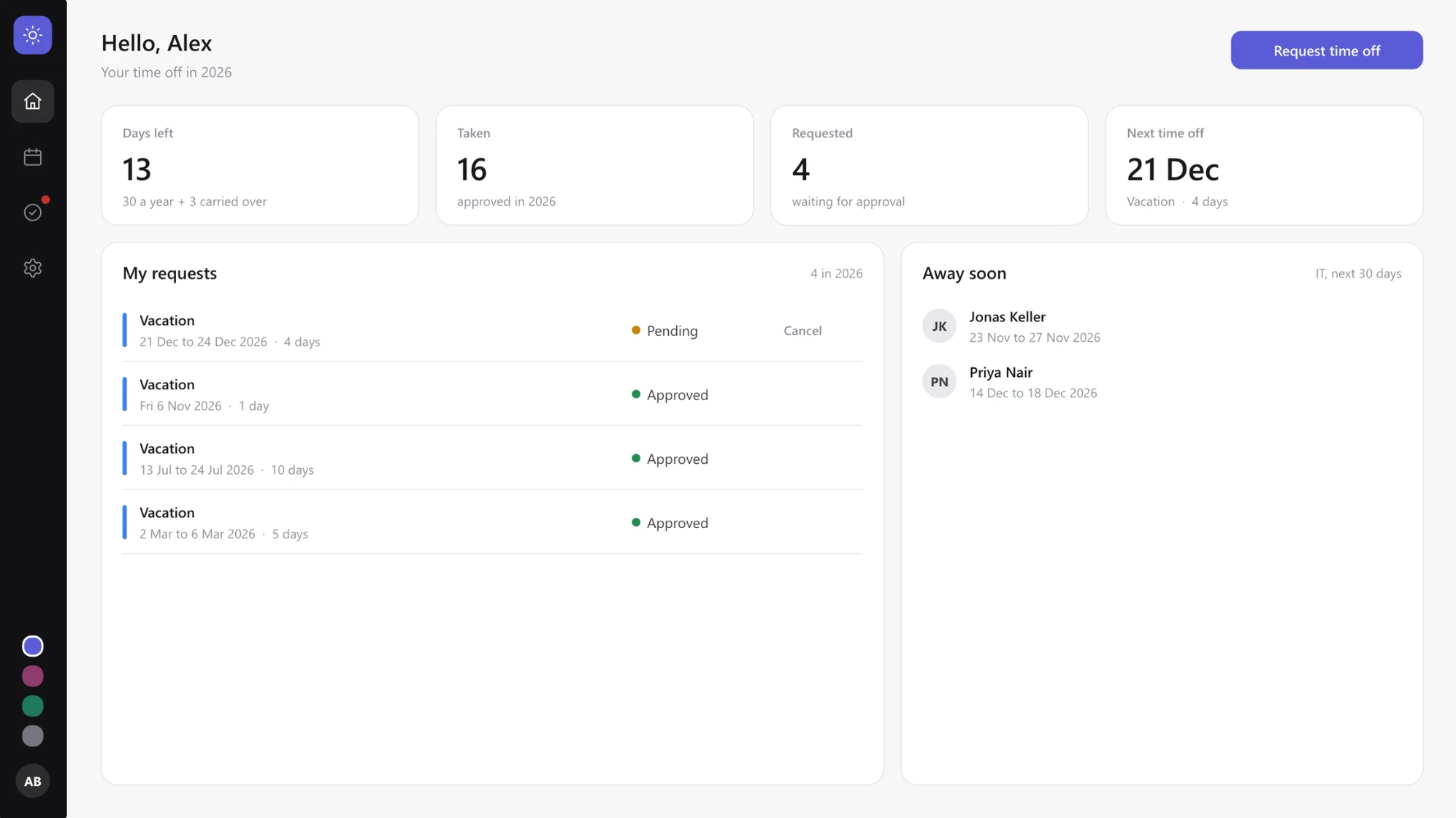
My time off
The page everyone opens: how many days are left, and what happened to the requests.
How many days do I have left?
Four cards answer the questions people otherwise ask HR: days left, days taken, days waiting for approval and the next time off.
Counted, never stored
Days left is worked out each time the page opens: days a year plus what was carried over, minus what is approved and what is requested. No number sits in a list where it could drift away from the requests.
Every request and where it stands
Pending, Approved, Declined or Cancelled, with the dates and the working days. A request that is still pending, or an approved one that has not started yet, can be cancelled right here. The app asks once more before it does it.
Who is away soon
Colleagues from your own department who are off in the next 30 days. It only says that they are away, never why.
One button to ask for time off
Request time off opens a sheet on the right. That is the next view.
Four themes built in
The same page in Night. Ink, Warm, Forest and Night change color and font, never the layout. The dots at the bottom of the bar switch between them, and you choose the one the app starts with.
View 2 of 5
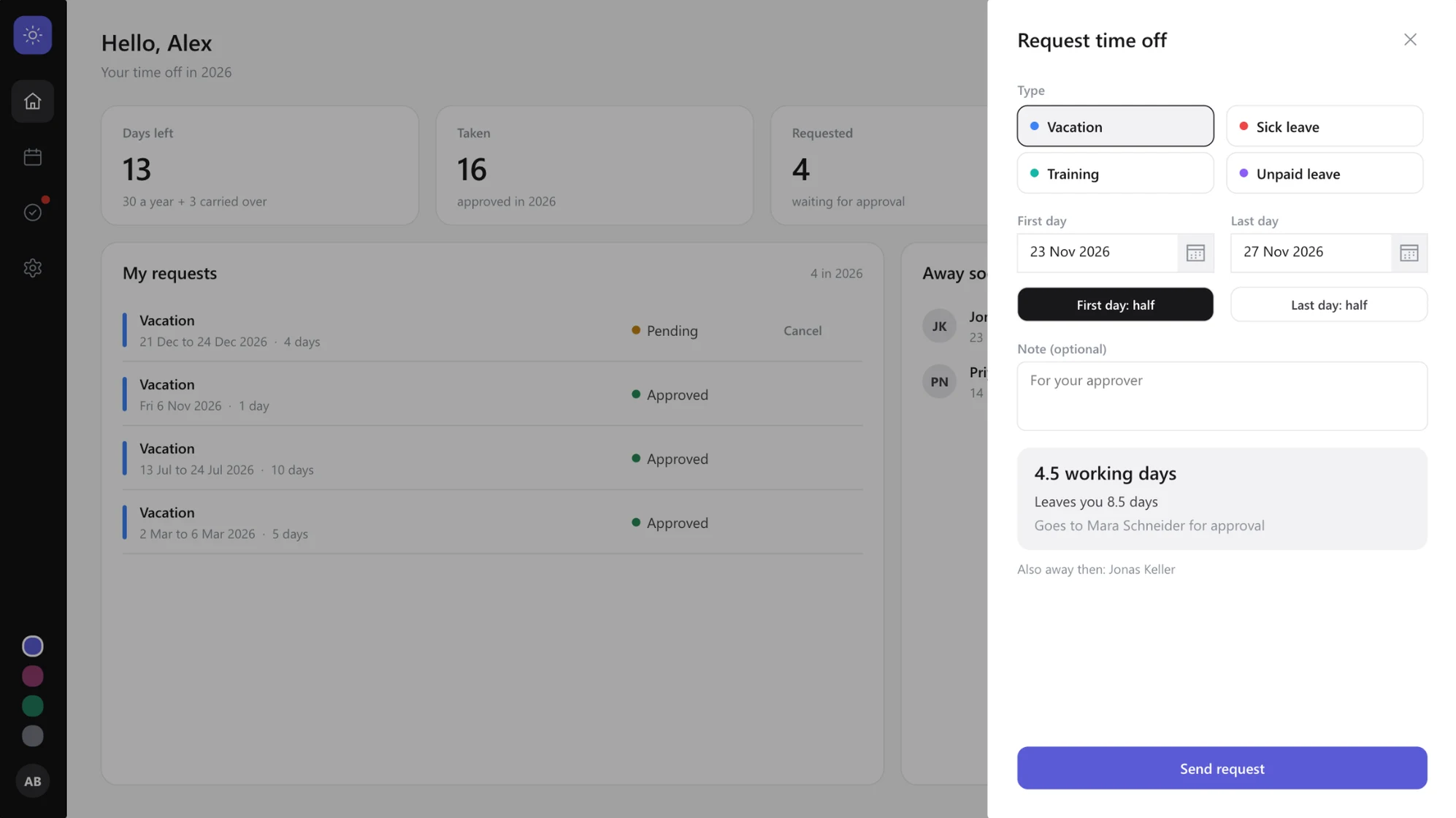
A request in one sheet
Four things to fill in, and the answer to "is that all right?" before anything is sent.
What kind of time off
Vacation, Sick leave, Training and Unpaid leave come with the app. An admin changes them or adds more in Settings, each with its own color.
First day, last day, half days
Two dates, and a half day on the first or the last day when you need one. Picking the first day moves the last day along, so one day off takes one click.
The app does the counting
It counts the working days while you pick: weekends and the public holidays of your region are left out. Here that is 4.5 days, 8.5 are left afterwards, the request goes to Mara Schneider, and Jonas Keller is away in the same days.
Sent, and the page behind it is up to date
Send request saves it as Pending and the cards on the page count it at once. A type that needs no approval, such as sick leave, is saved as approved right away. Two requests over the same days are not possible.
In your colors
The sheet in Warm. The buttons take the color of the theme.
View 3 of 5
The team calendar
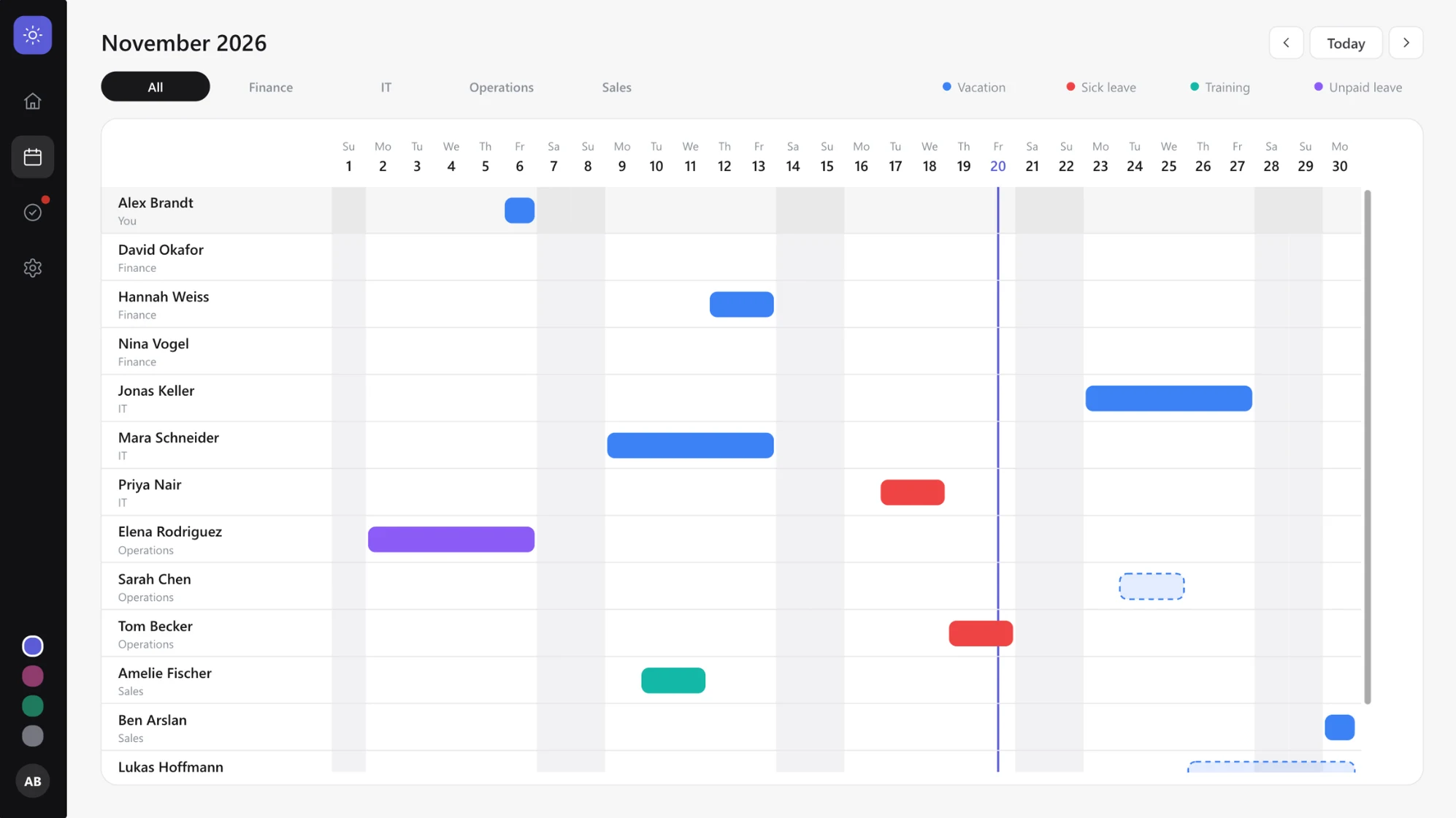
Who is away when, a month at a time. The page a team lead opens before saying yes.
People down, days across
One row per person, one column per day. A bar is time off. Saturdays, Sundays and public holidays are shaded.
Your own row comes first
It says You instead of the department, so you find yourself without searching.
Approved or still open
A solid bar is approved. A dashed one is a request that waits for a decision, so nobody plans around days that are not sure yet.
Today
A line marks today, and the day in the header takes the color of the theme.
One department at a time
The chips come from the departments of your people. All shows everyone.
Colors, and who sees them
Each leave type has its color. A private type such as sick leave is grey for colleagues: they see that someone is away, not why. The person, their approver and admins see the color.
Month by month
The arrows move a month back or forward, Today jumps back. A request that runs over the end of a month continues in the next one.
Green for a change
The calendar in Forest.
View 4 of 5
Approvals
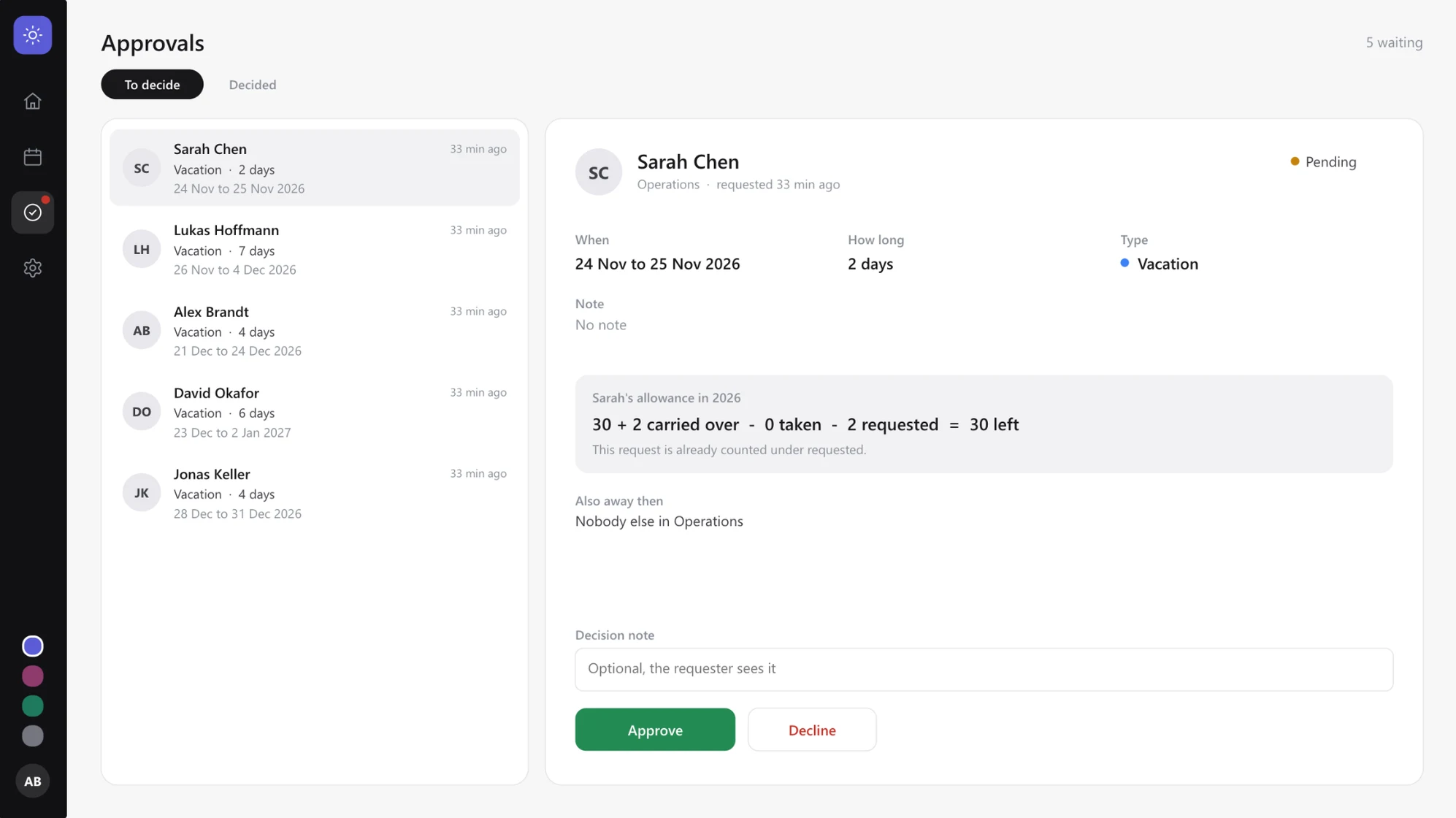
Everything an approver needs to decide on one page, without opening a second tool.
A dot when something waits
The approvals icon only shows for approvers and admins, and it carries a red dot while a request is waiting.
The requests waiting for you
Approvers see the requests of the people who have them as approver. Admins see all of them, so a request is never stuck because someone is on holiday themselves.
Can they afford it?
The balance of the person, written as a sum: days a year plus carried over, minus taken, minus requested, equals left. The request you are looking at is already in the sum.
Who else is away then
The colleagues from the same department who are off in those days, approved or requested.
Approve or decline, with a note
The note is optional and the requester sees it. After the decision the next request is selected.
What was decided
Decided lists this year's decisions with their notes.
After hours
Approvals in Night.
View 5 of 5
Settings
What an admin looks after, in the app instead of in SharePoint or Studio.
Only admins see it
Whoever sets the app up becomes the first admin and can make others admin too. Nobody can change their own role, so no admin locks themselves out.
People, Leave types, Holidays, General
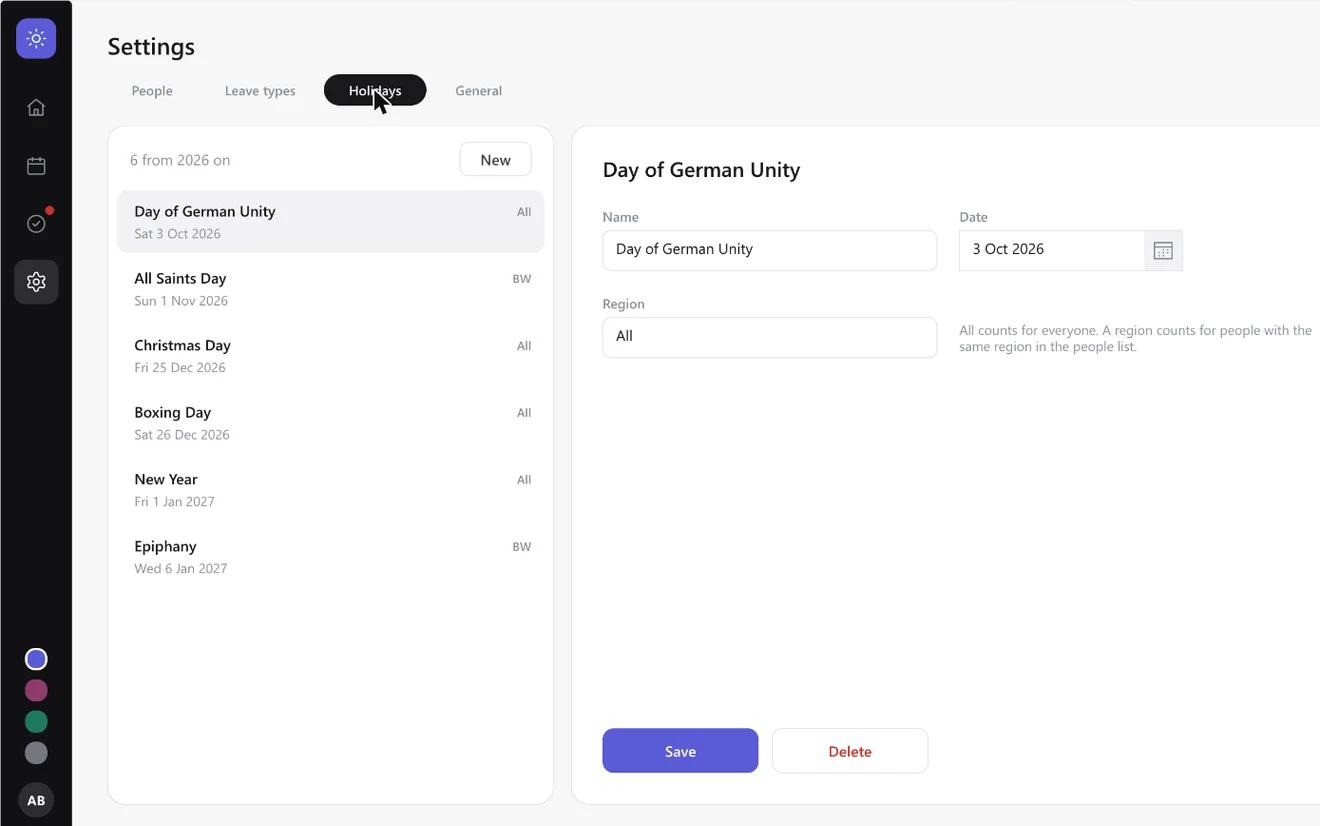
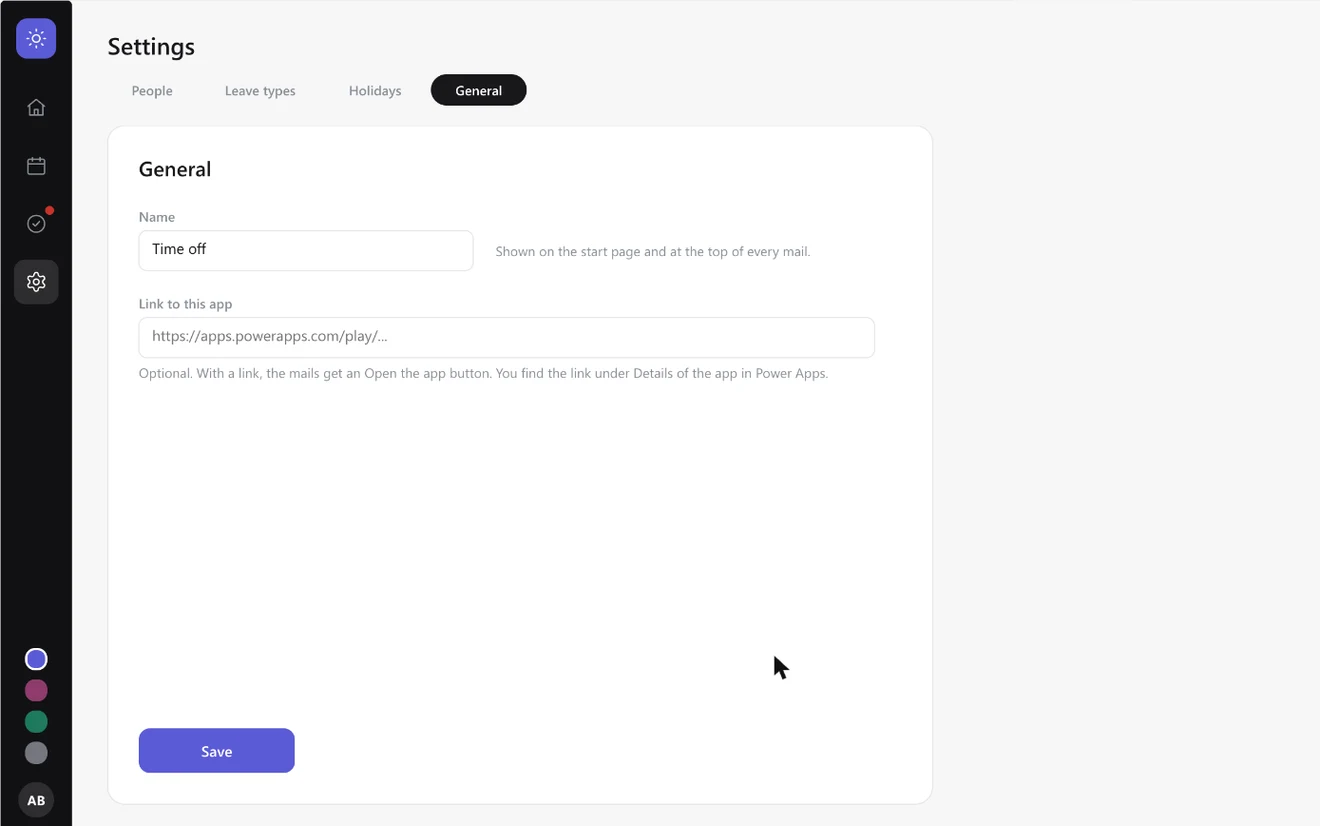
People holds one row per person: days a year, carried over, approver and the region for public holidays. Holidays are entered per region. General holds the name of the app and its link for the mails.
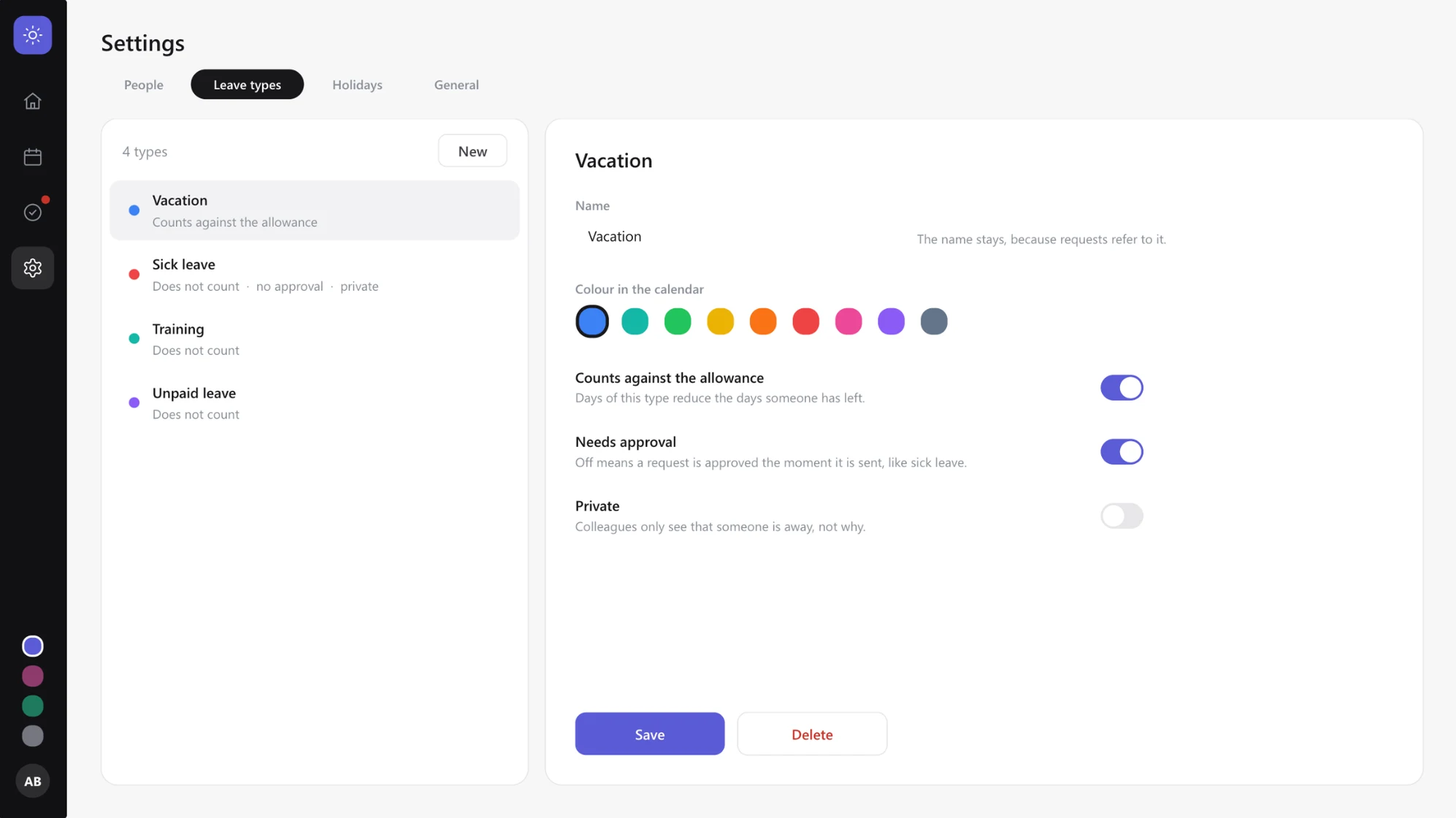
Your leave types
Four come with the app. A type keeps its name once requests use it, and it cannot be deleted while they do.
A color for the calendar
Nine colors to choose from. The bars in the team calendar and the dots in the request sheet take it.
Three switches per type
Counts against the allowance, Needs approval and Private. Sick leave, for example, does not count, needs no approval and is private.
Easy on the eyes
Settings in Warm.
Look around
All five views in all four themes. These are screenshots from the app running on its SharePoint lists, not mock-ups: what you see is what you paste.
Set it up
Five steps from an empty SharePoint site to a working app, plus optional e-mail flows. Beta: the app is in English, has no phone layout and was built and tested in one Microsoft 365 tenant so far.
Step 1 of 6
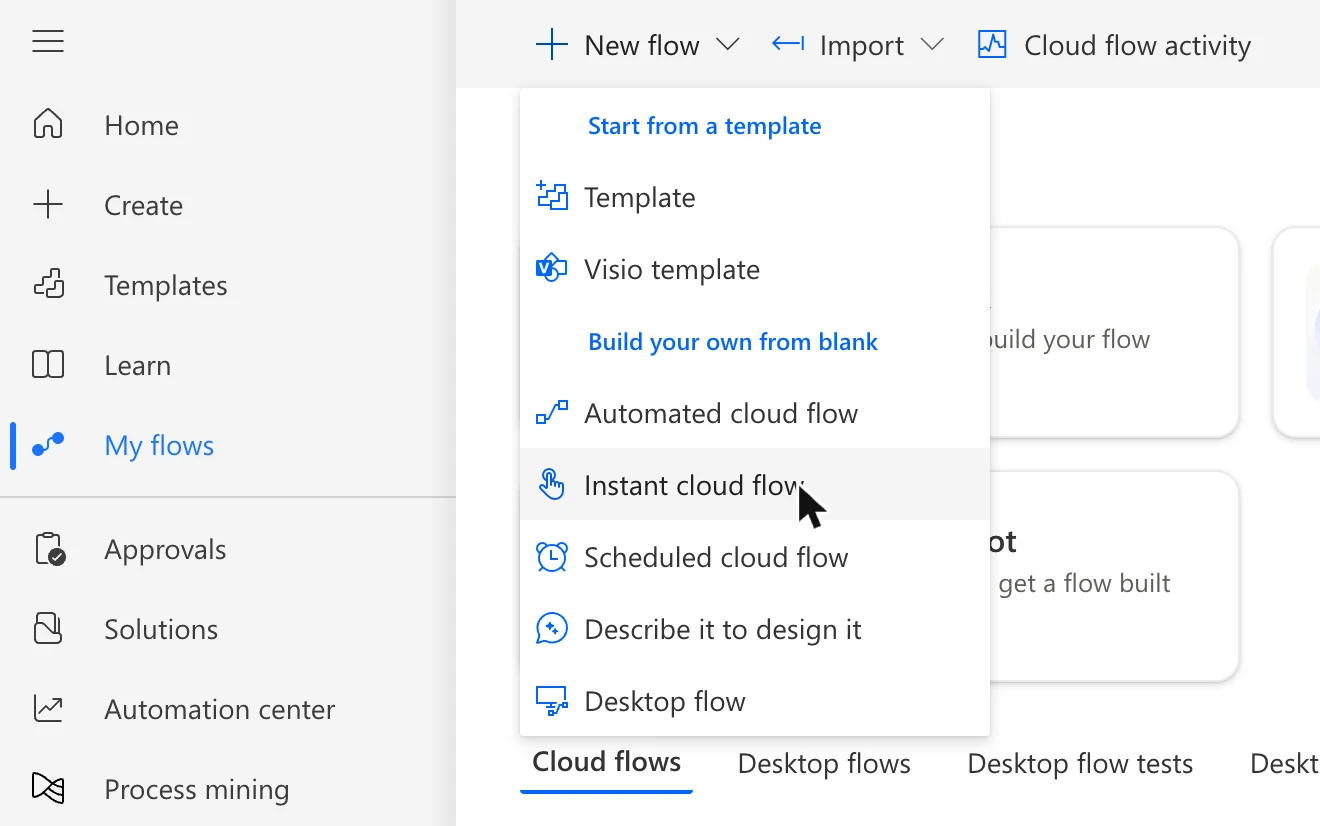
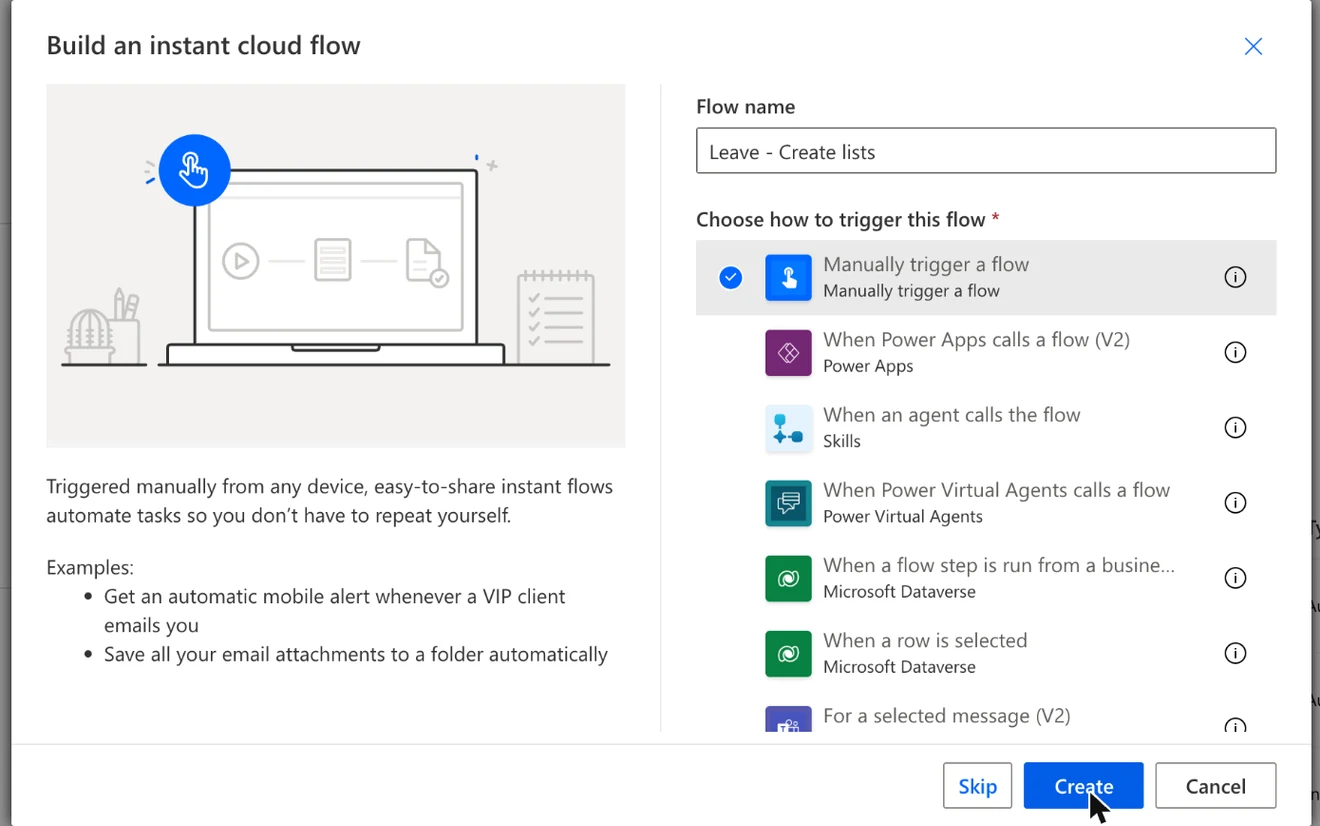
Create the five lists
A small flow builds them on your SharePoint site.
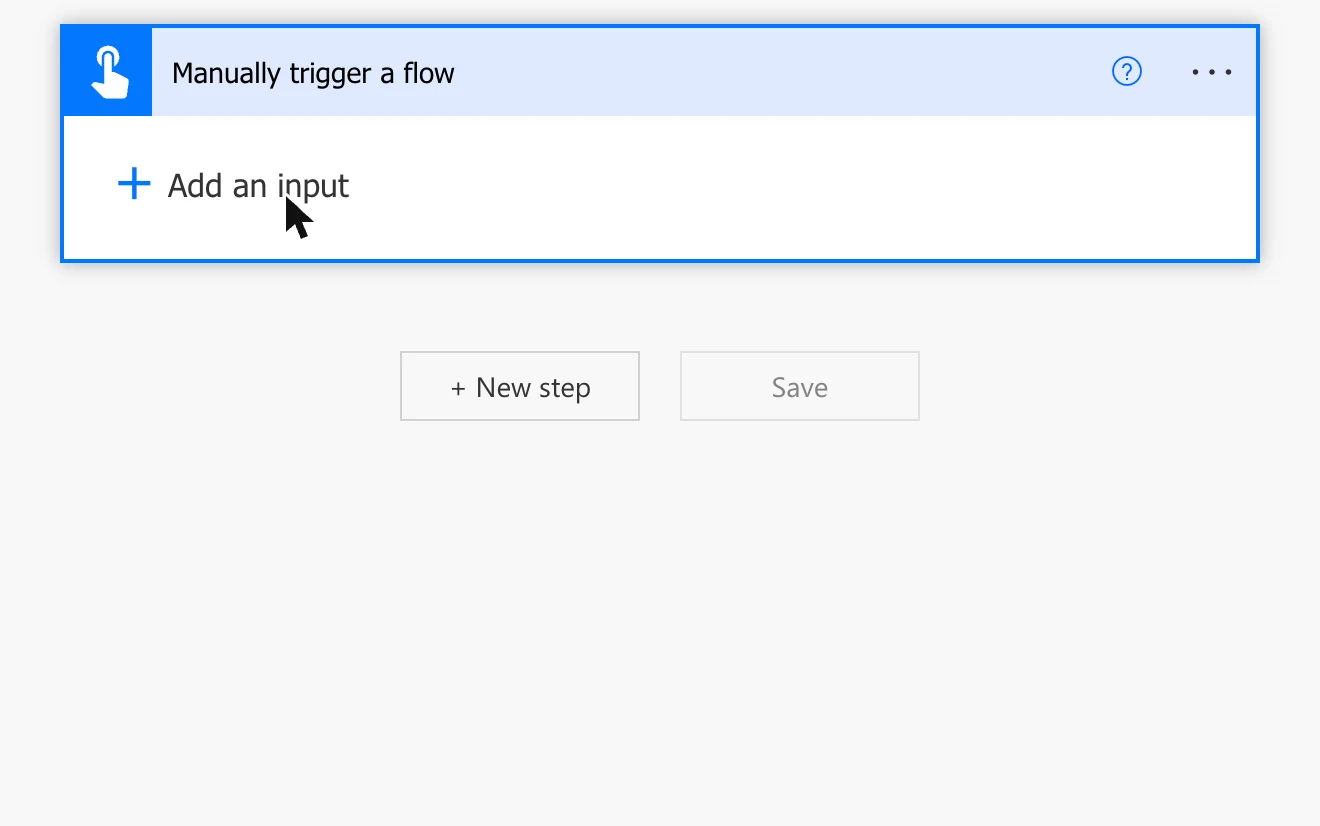
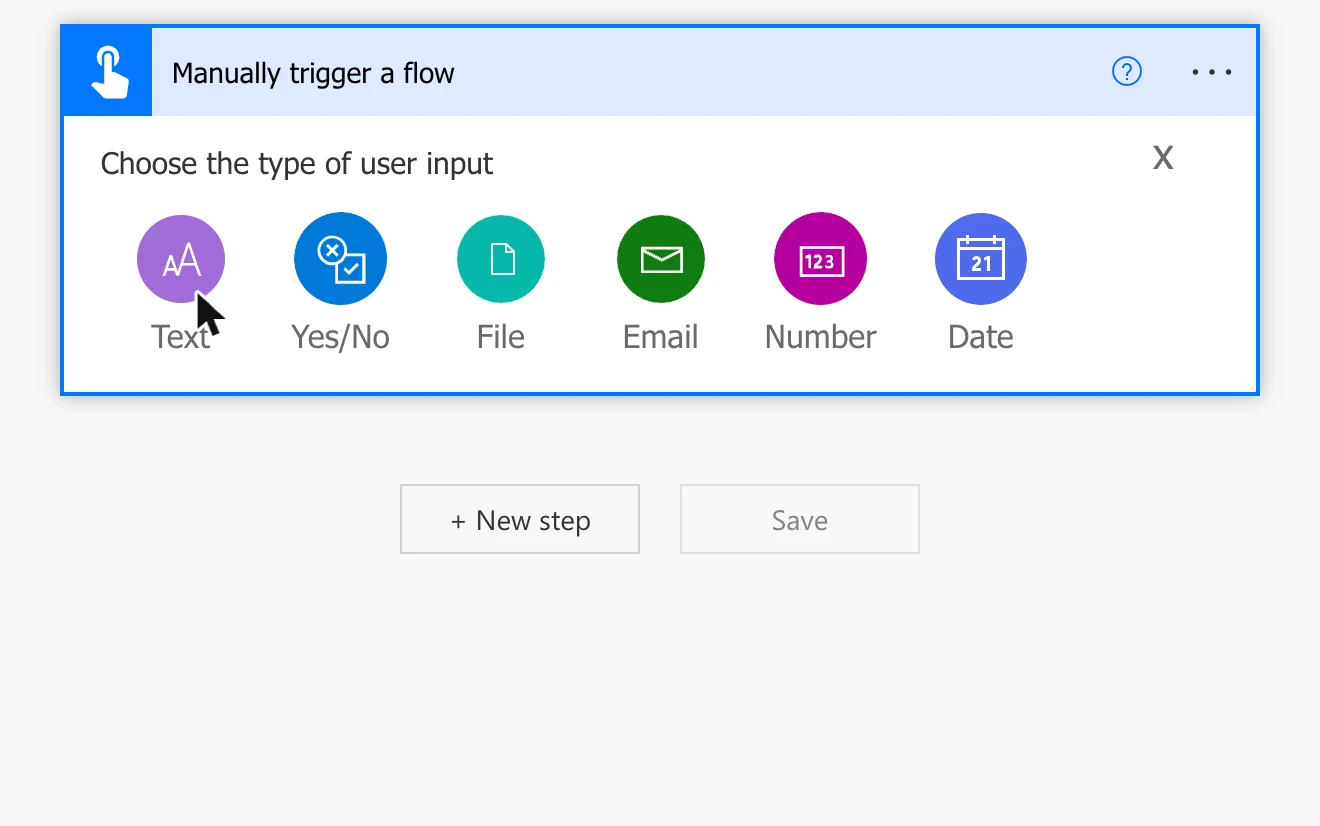
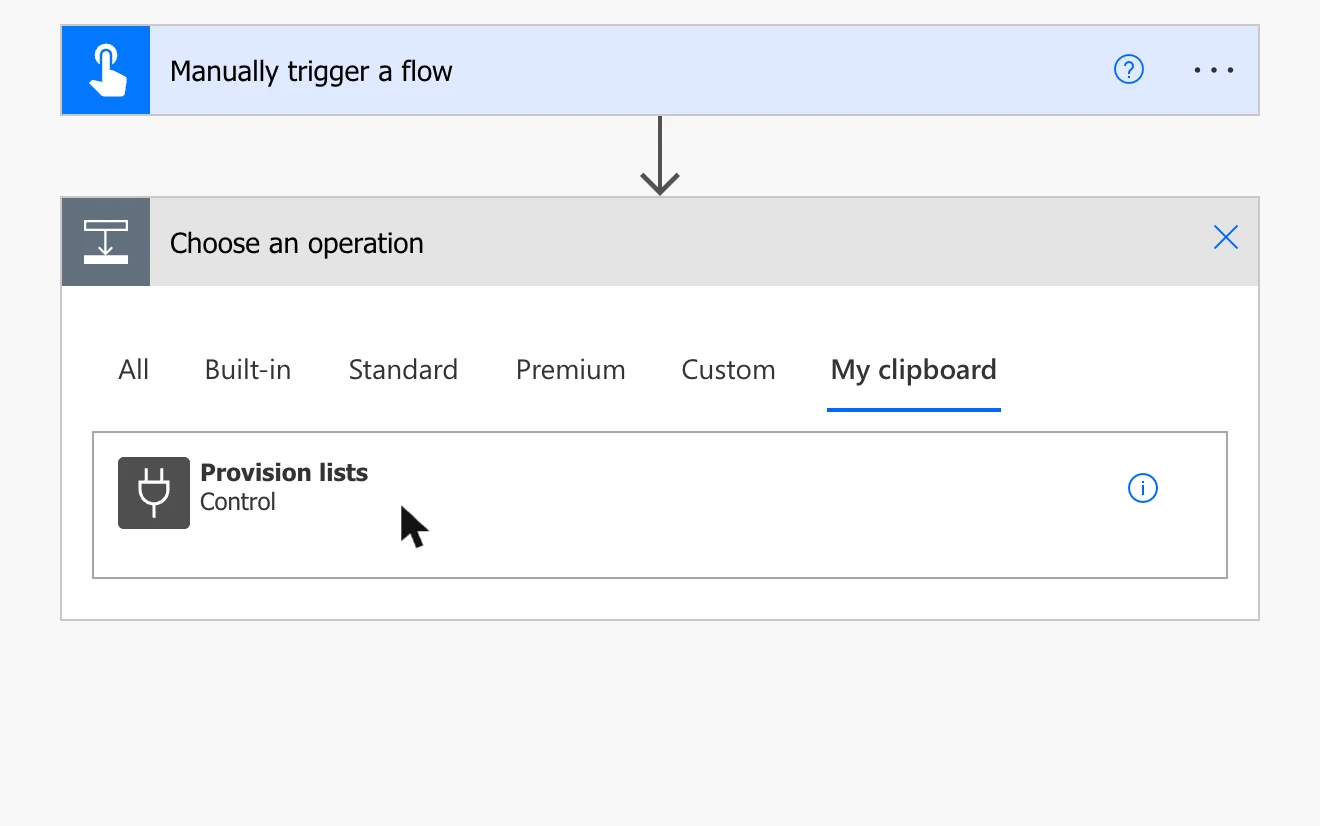
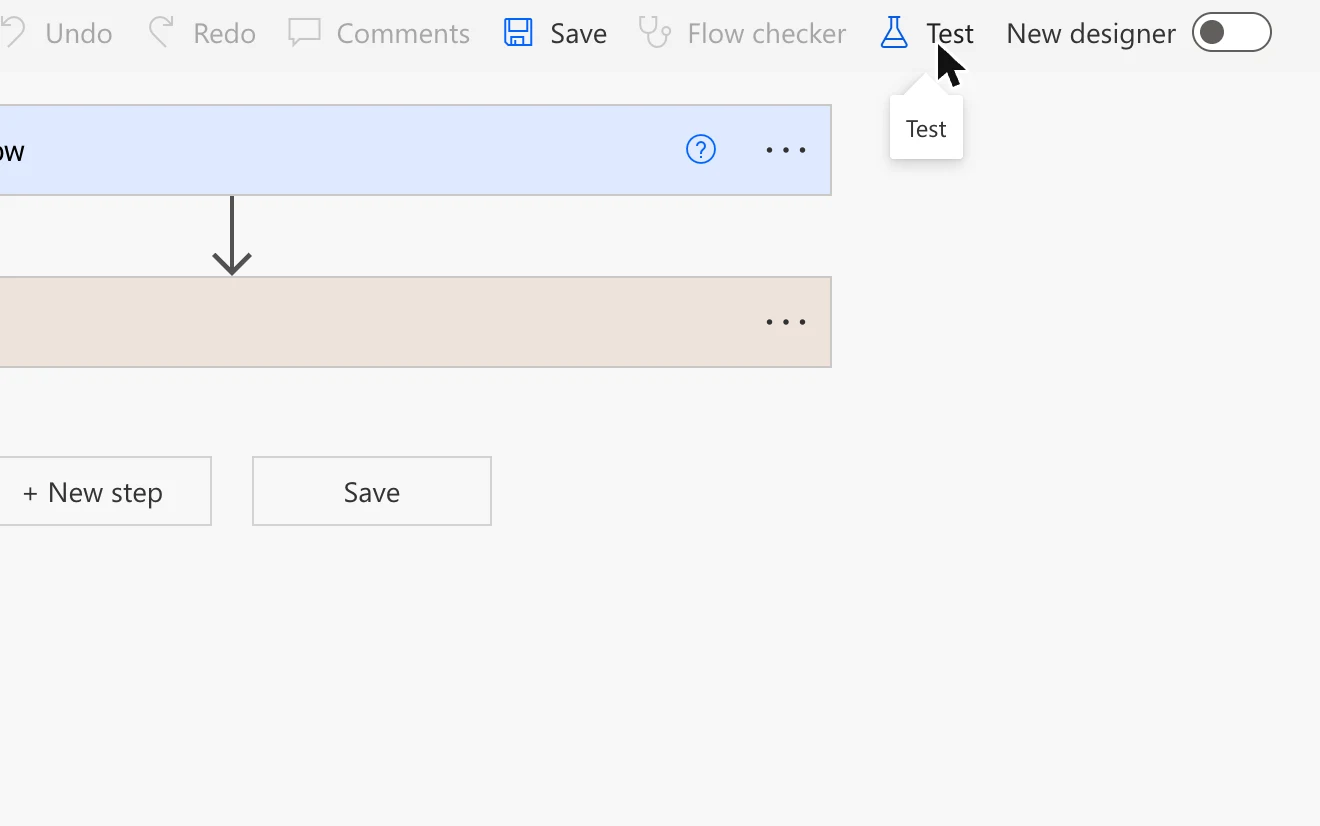
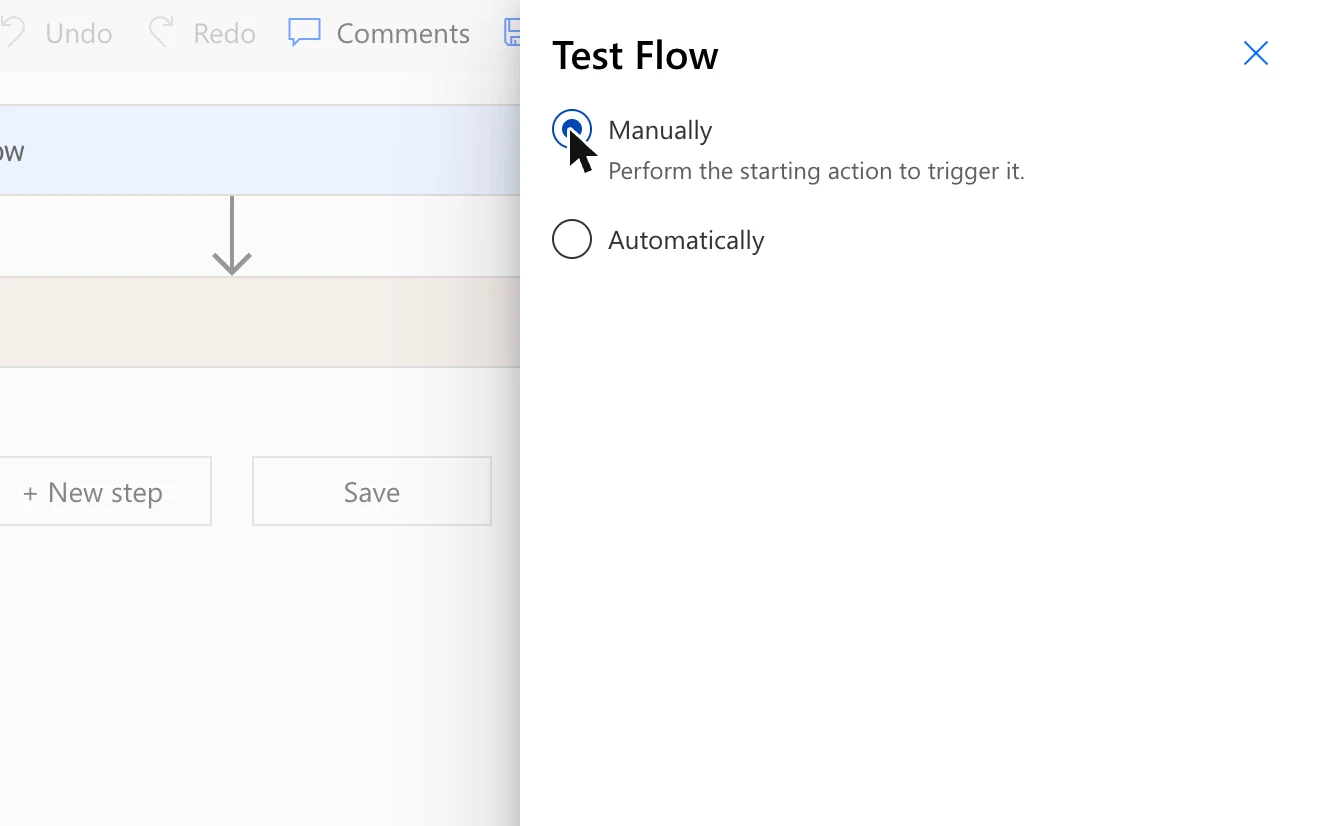
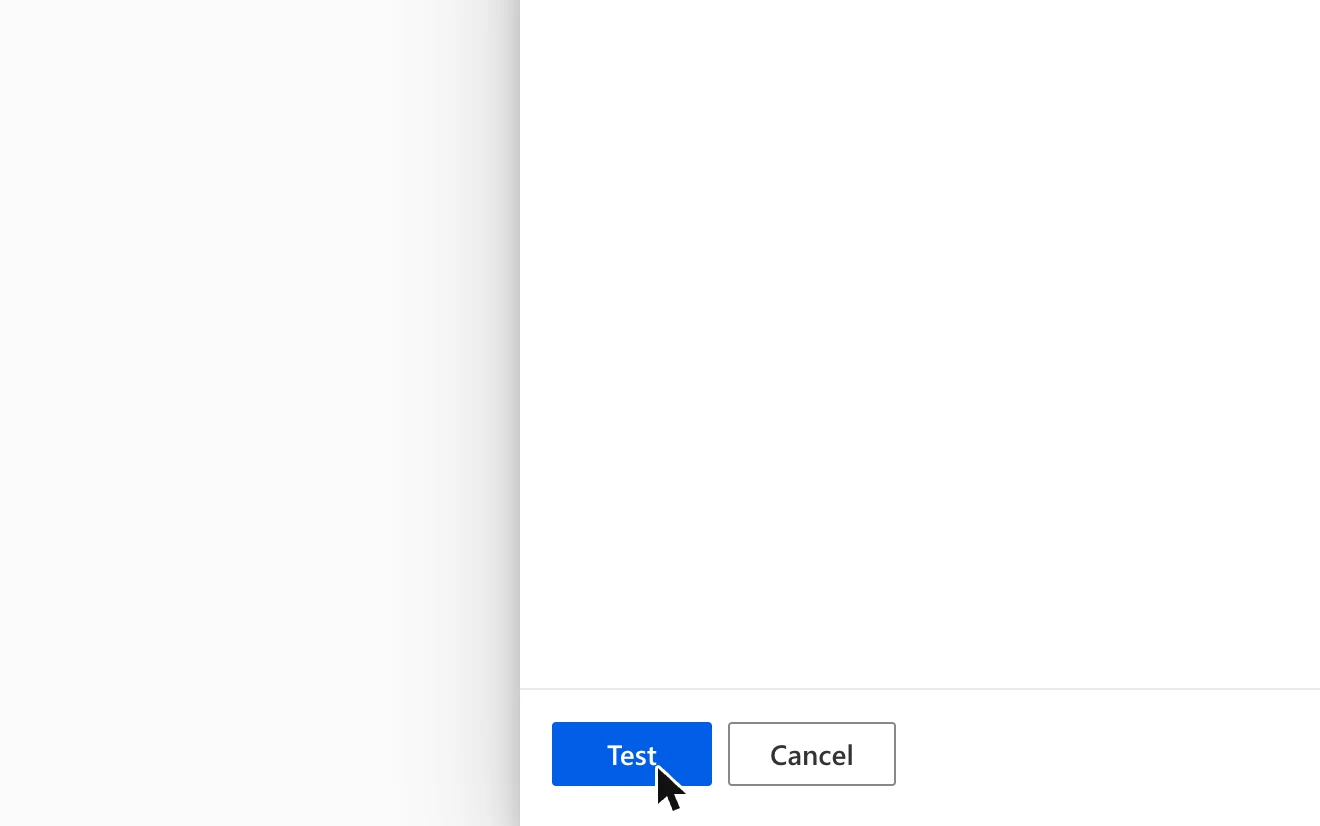
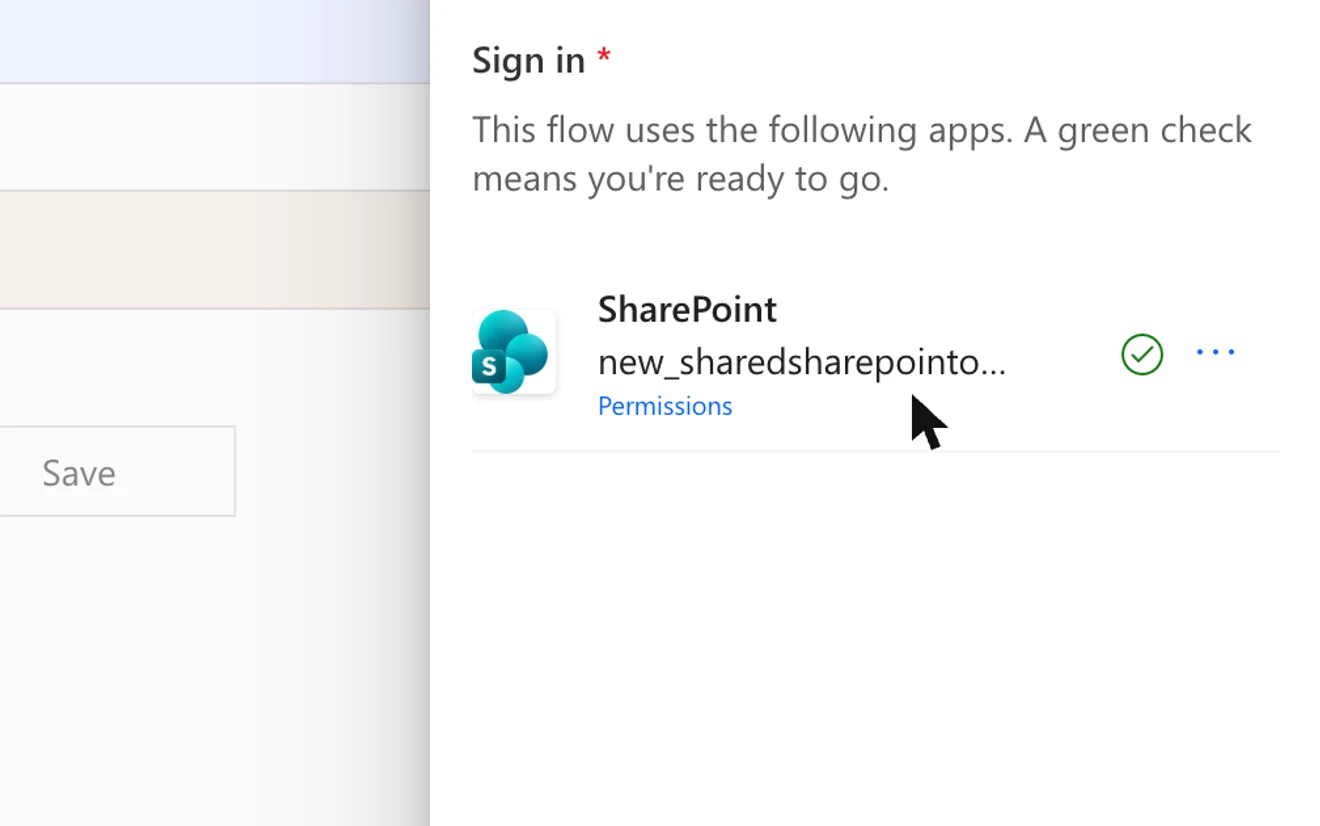
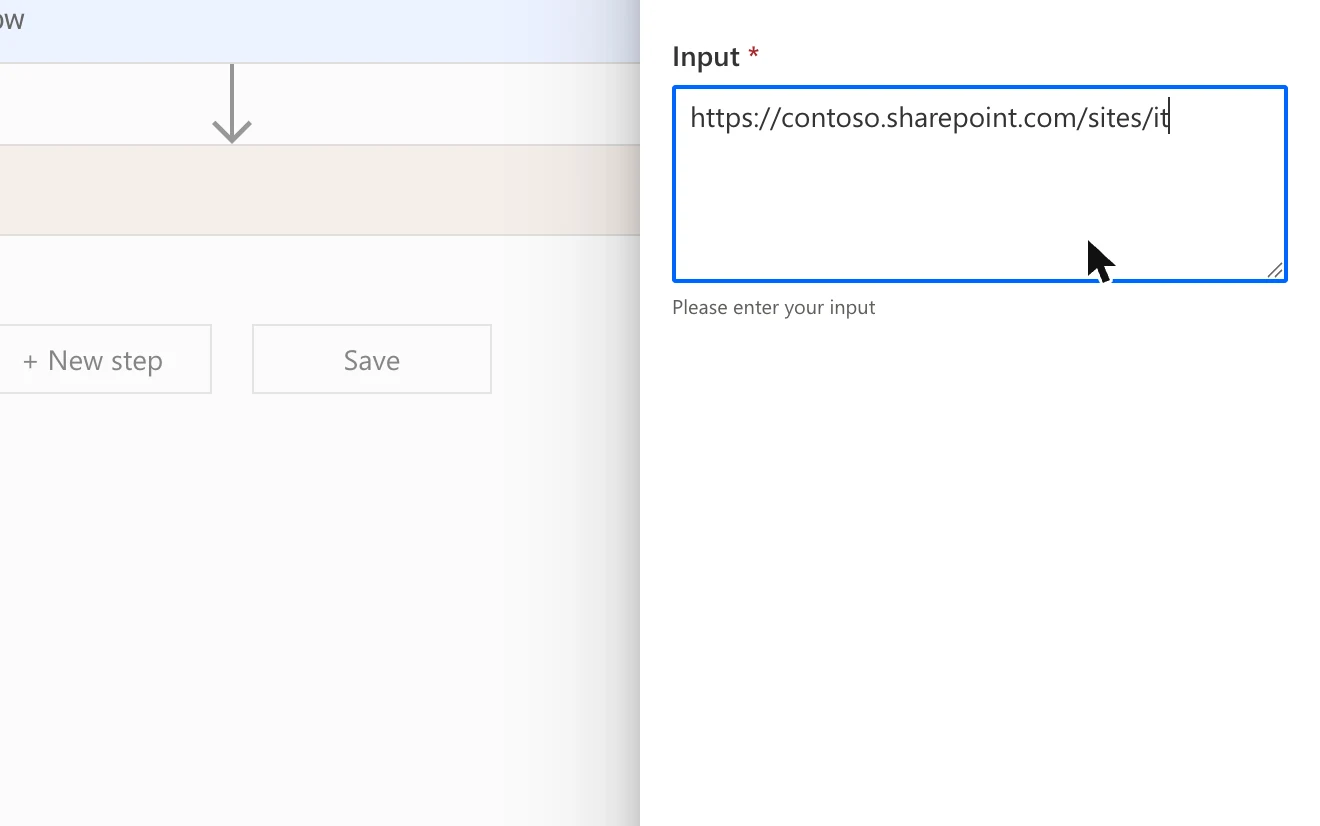
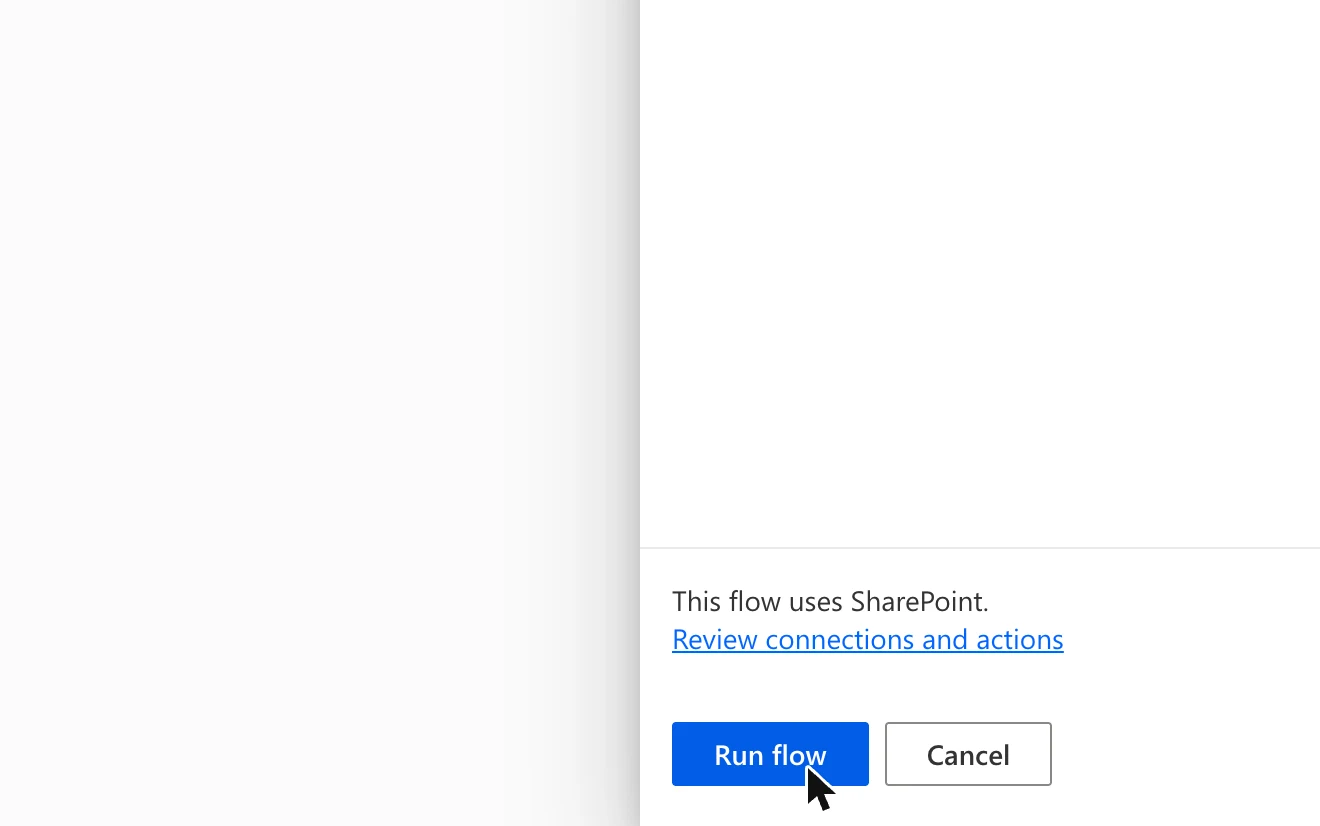
You are done when
The flow says "Your flow ran successfully." and your site has five new lists: Leave People, Leave Types, Leave Requests, Leave Holidays, Leave Settings. Running the flow again is safe, it only adds what is missing.
Create the app and add the lists
A blank tablet app with the five lists as data.
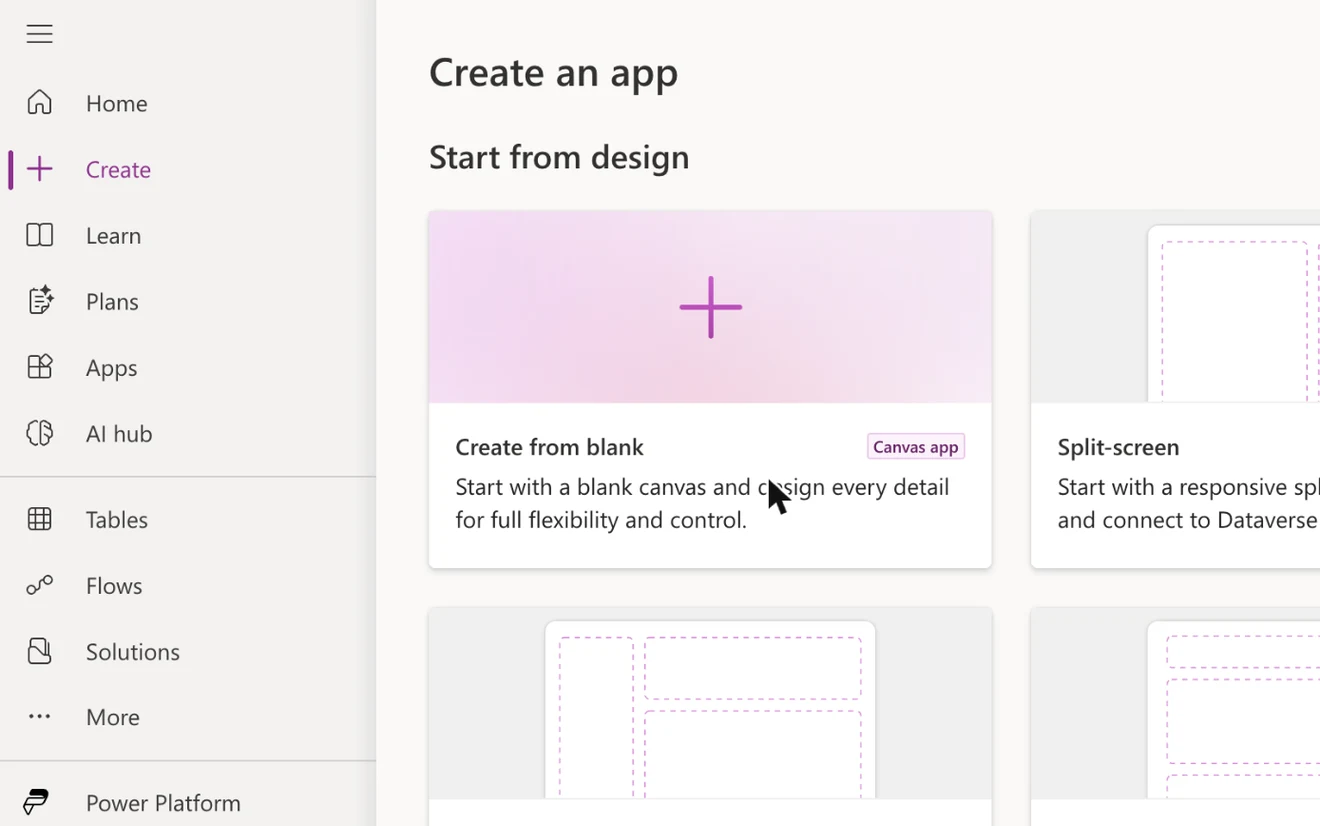
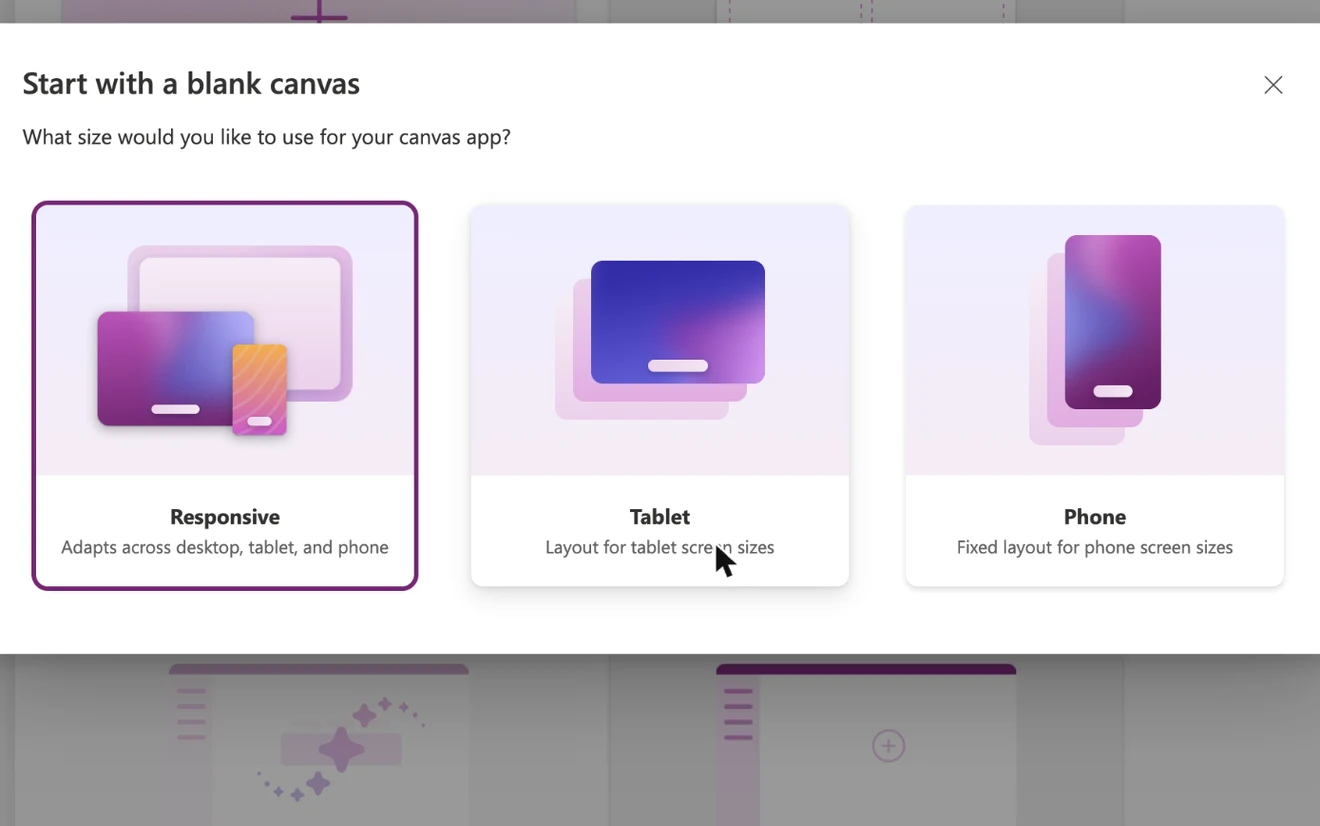
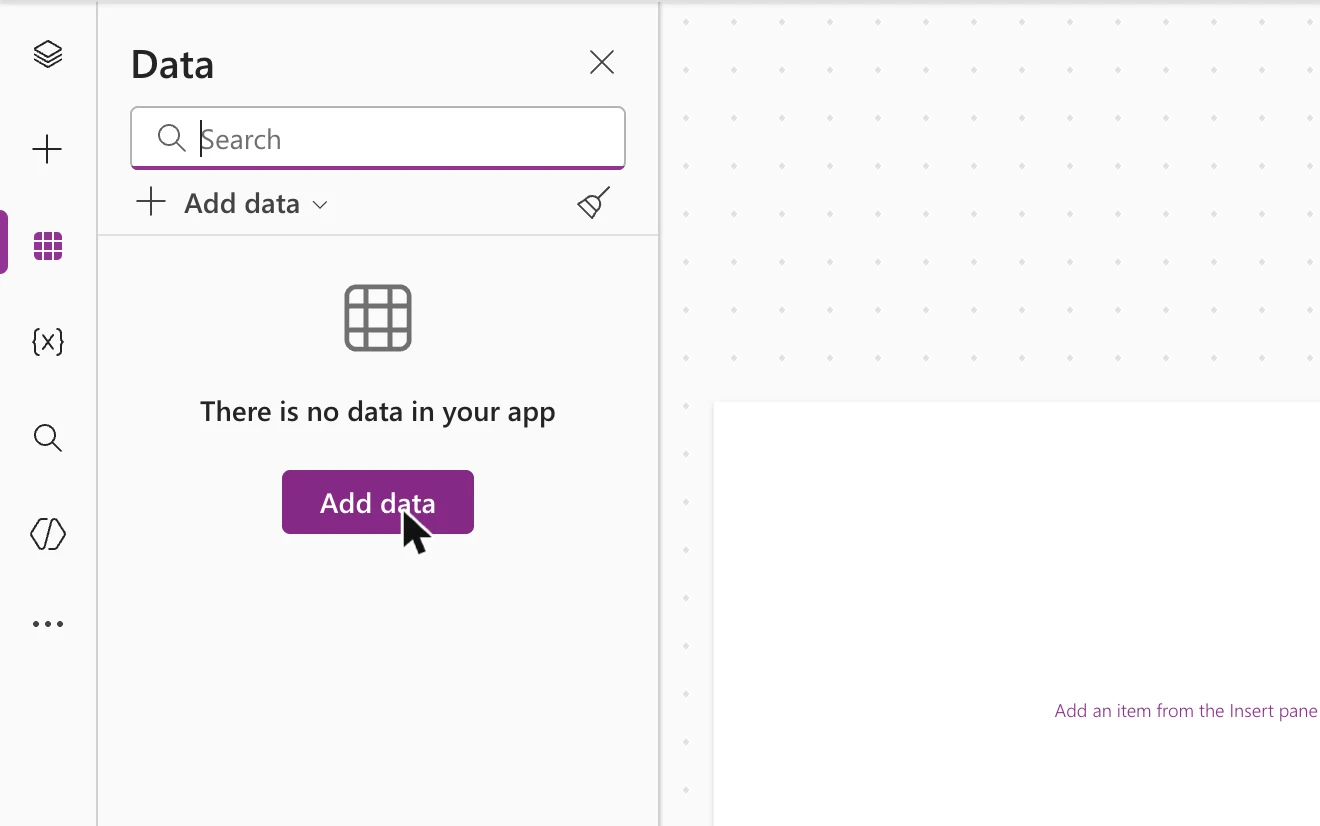
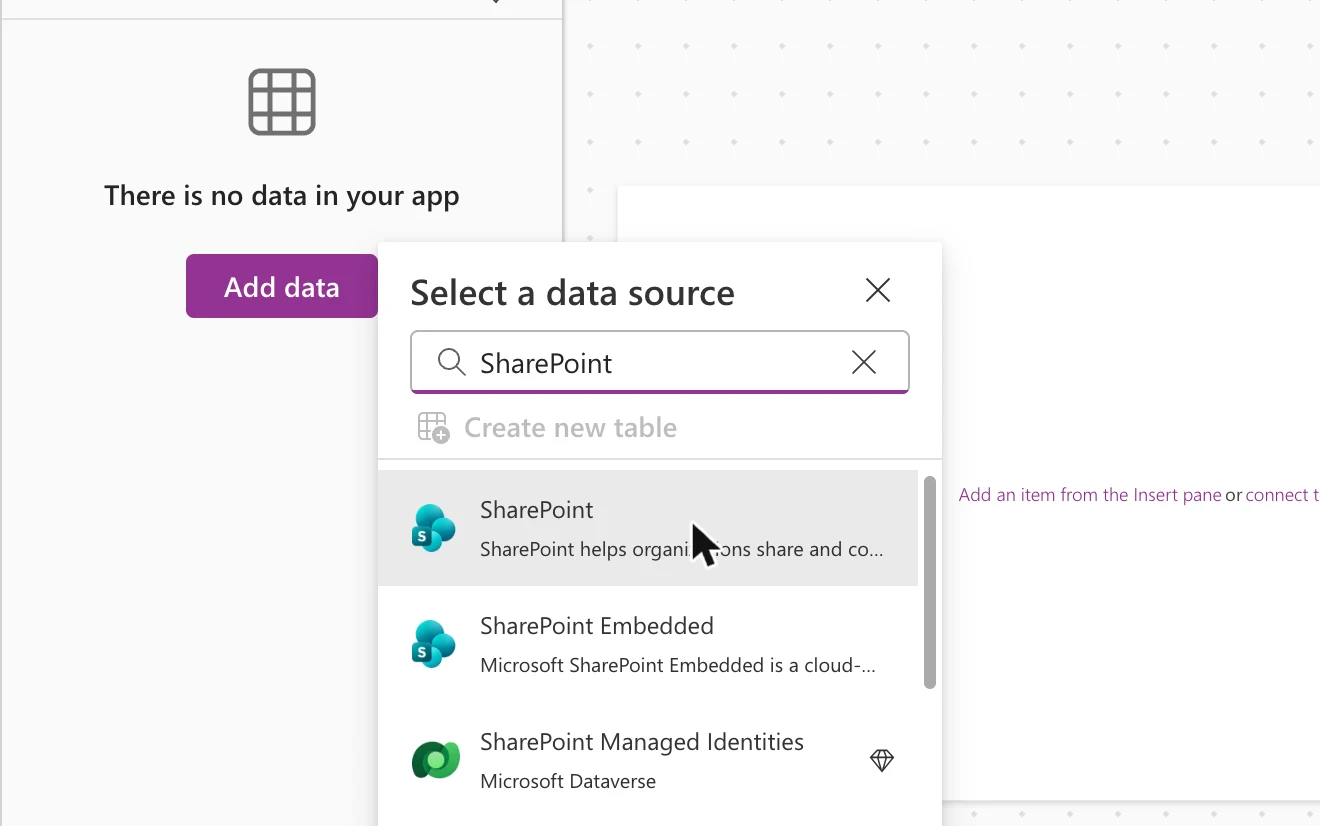
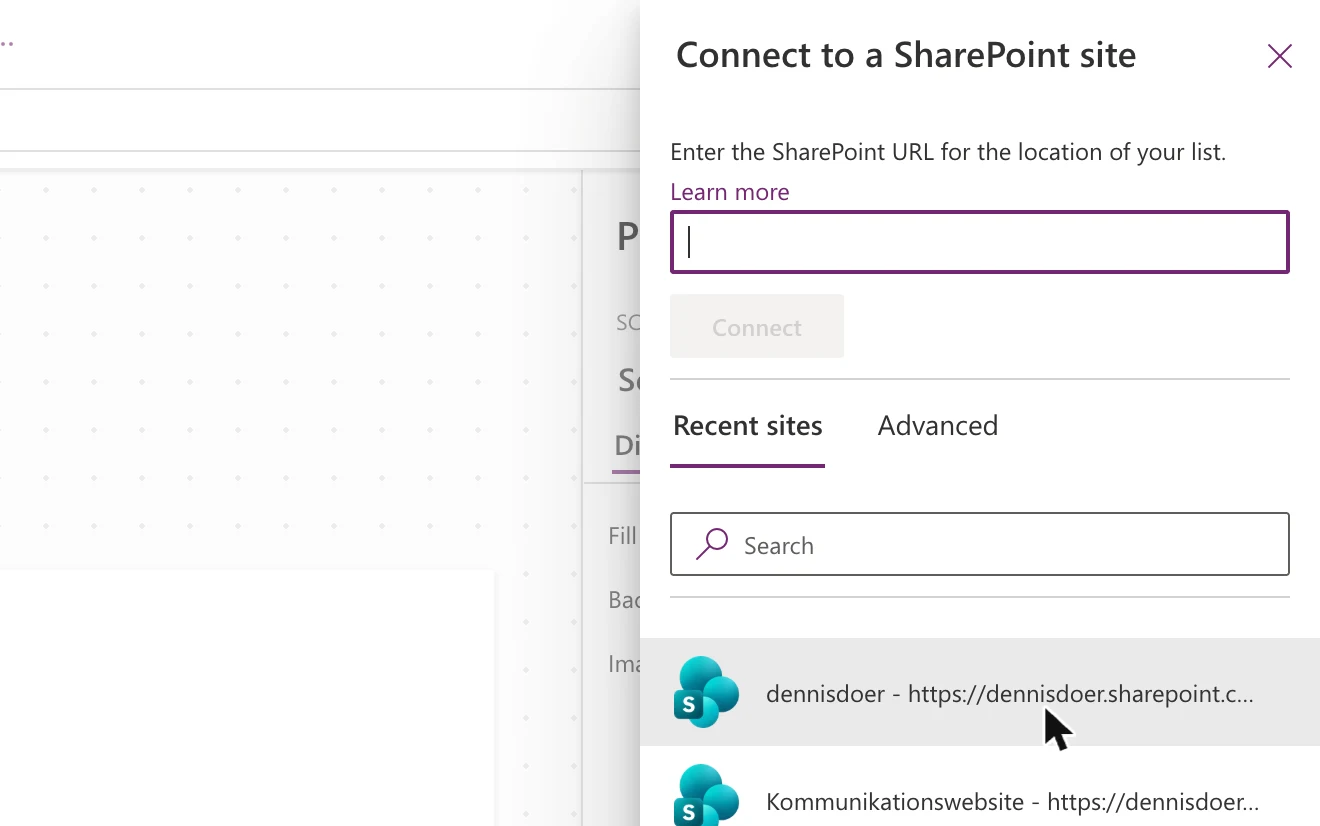
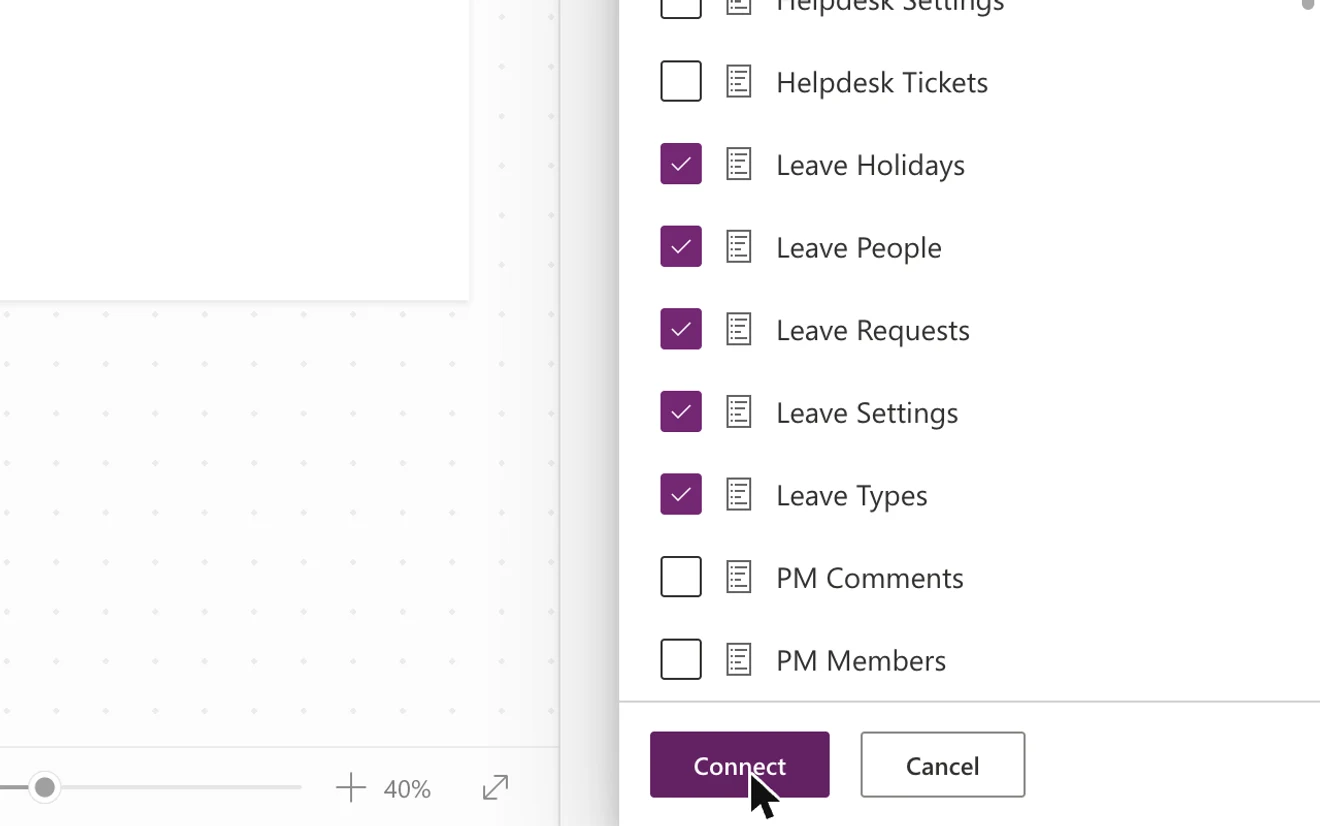
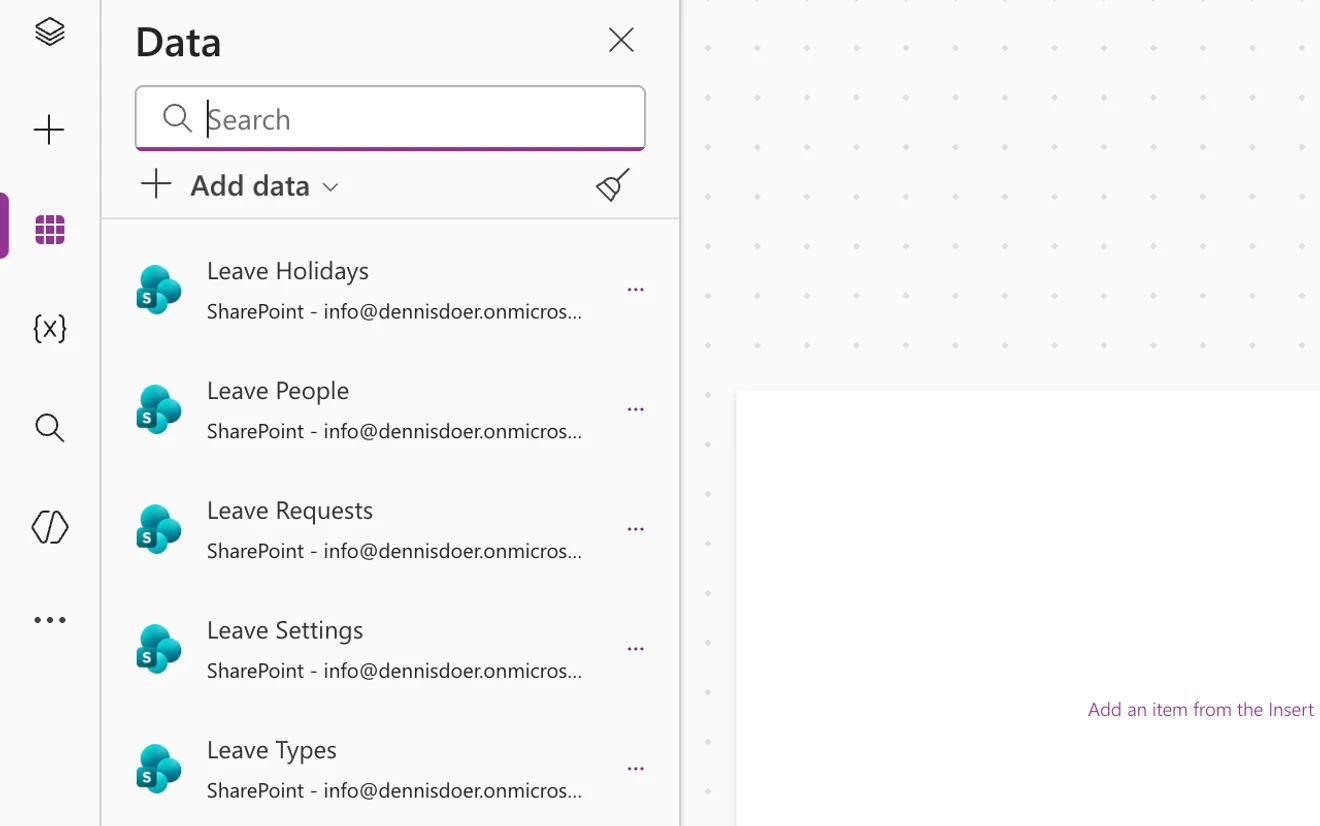
You are done when
The Data pane lists all five. Do this before pasting, otherwise every formula shows an error.
Paste the app
One paste brings all five screens.
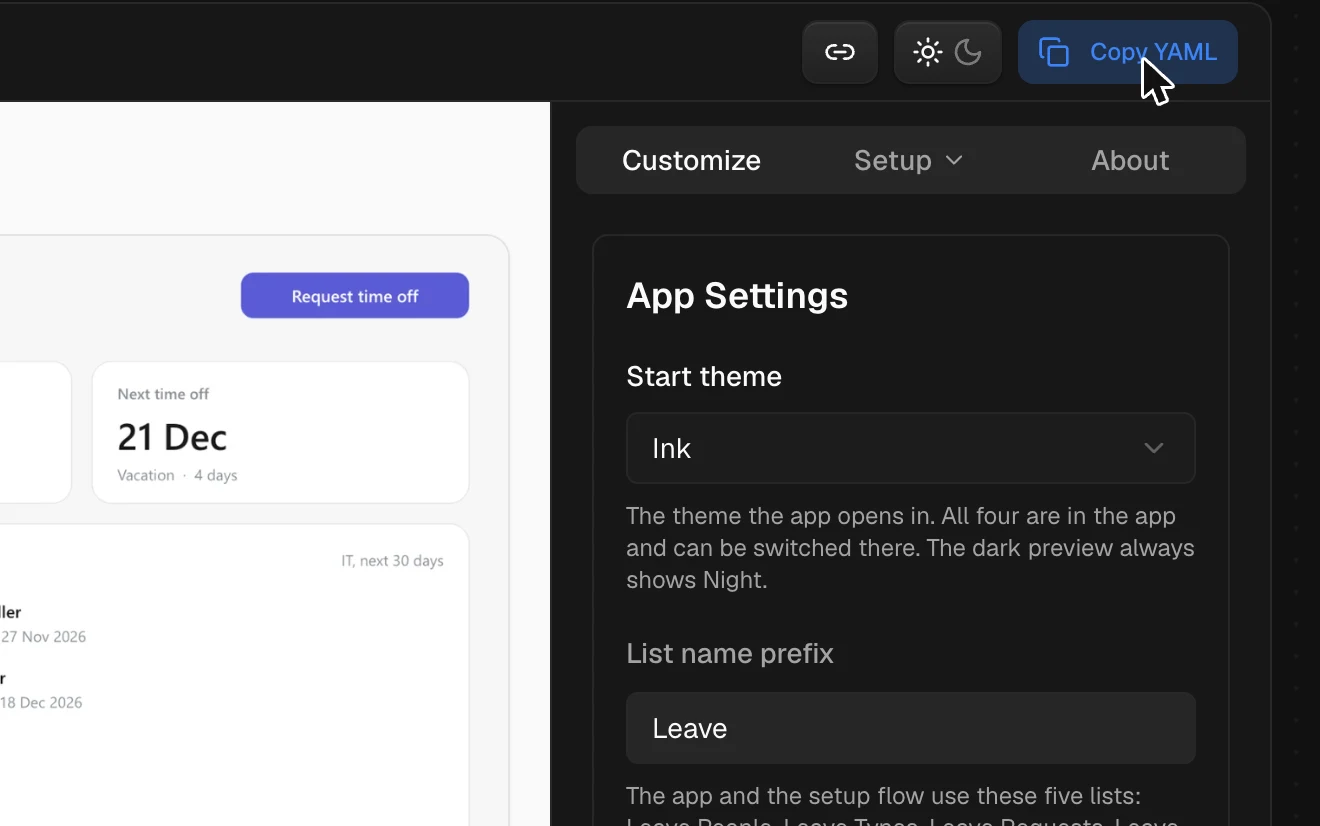
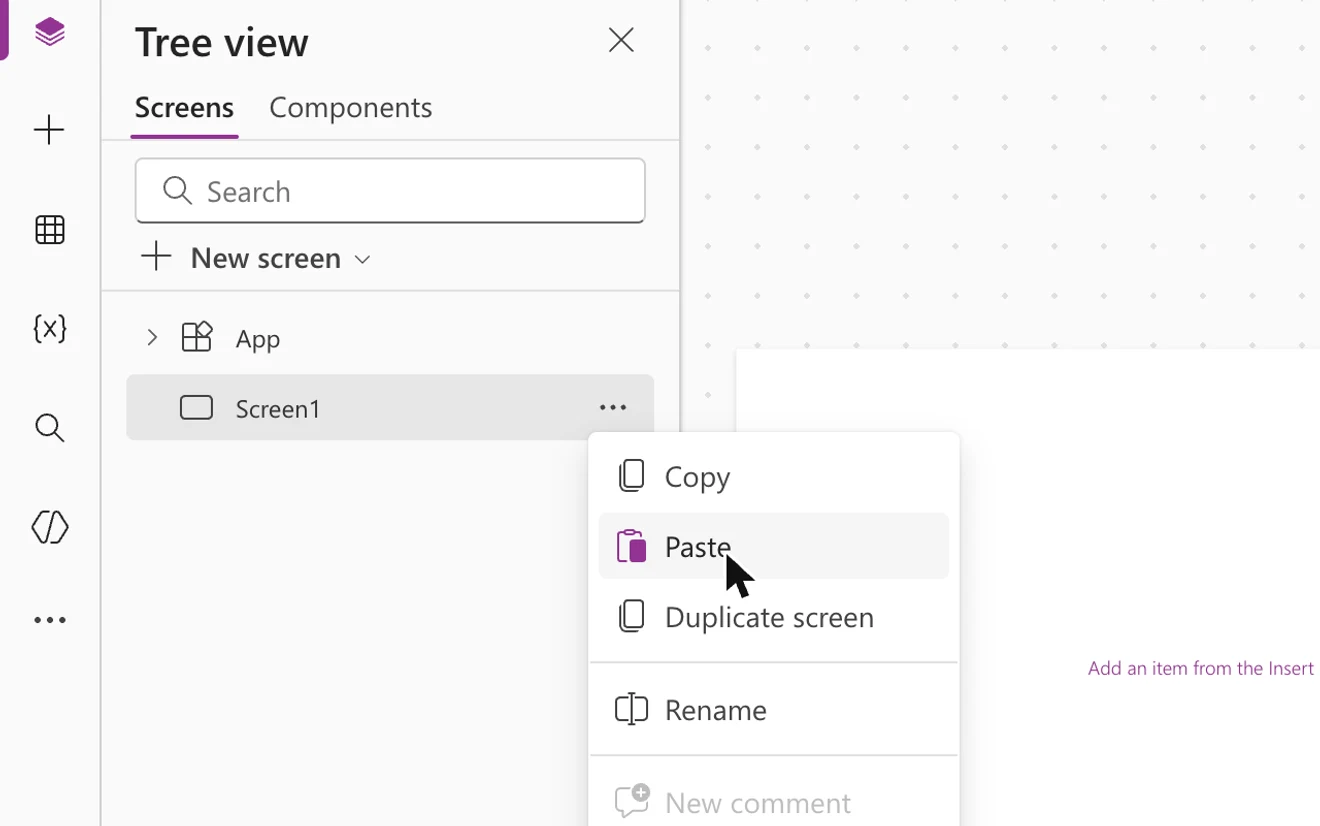
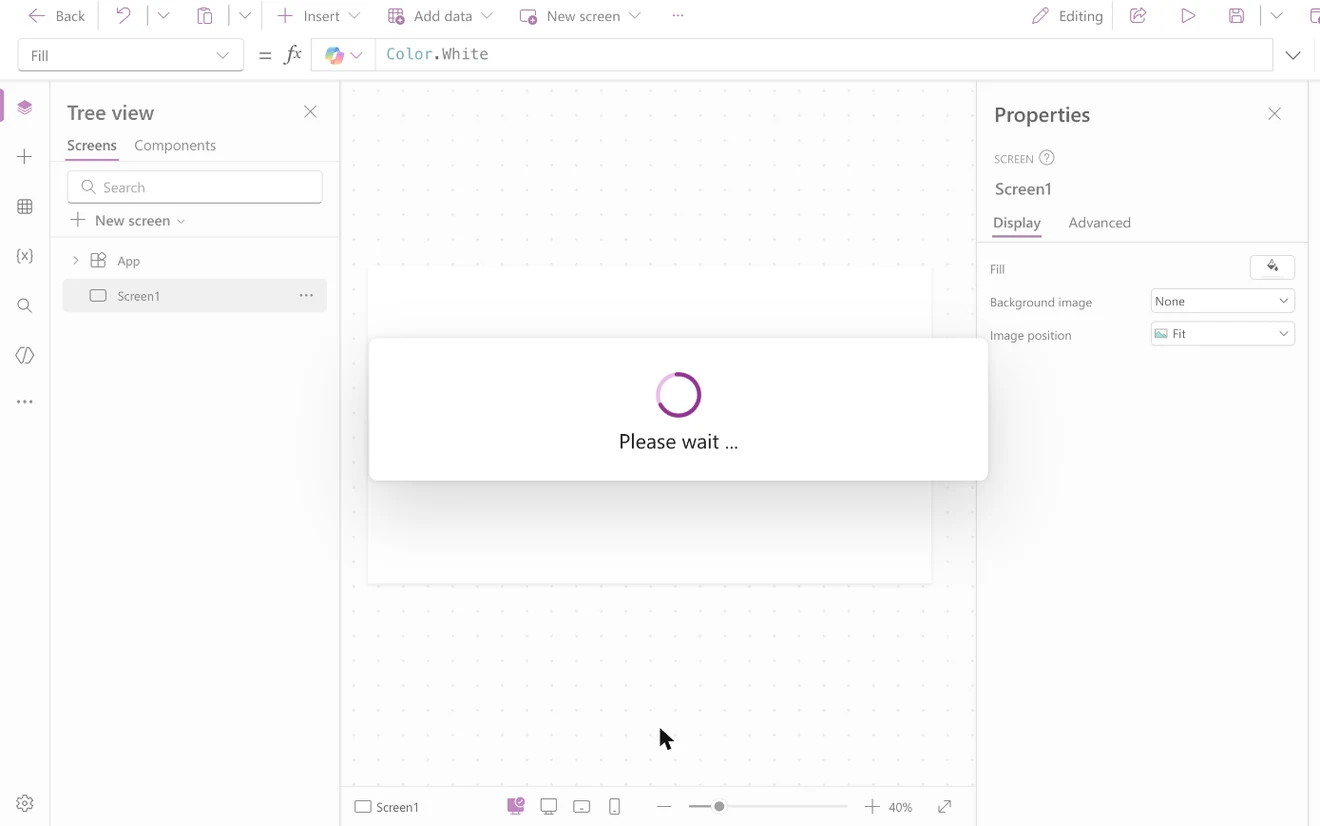
You are done when
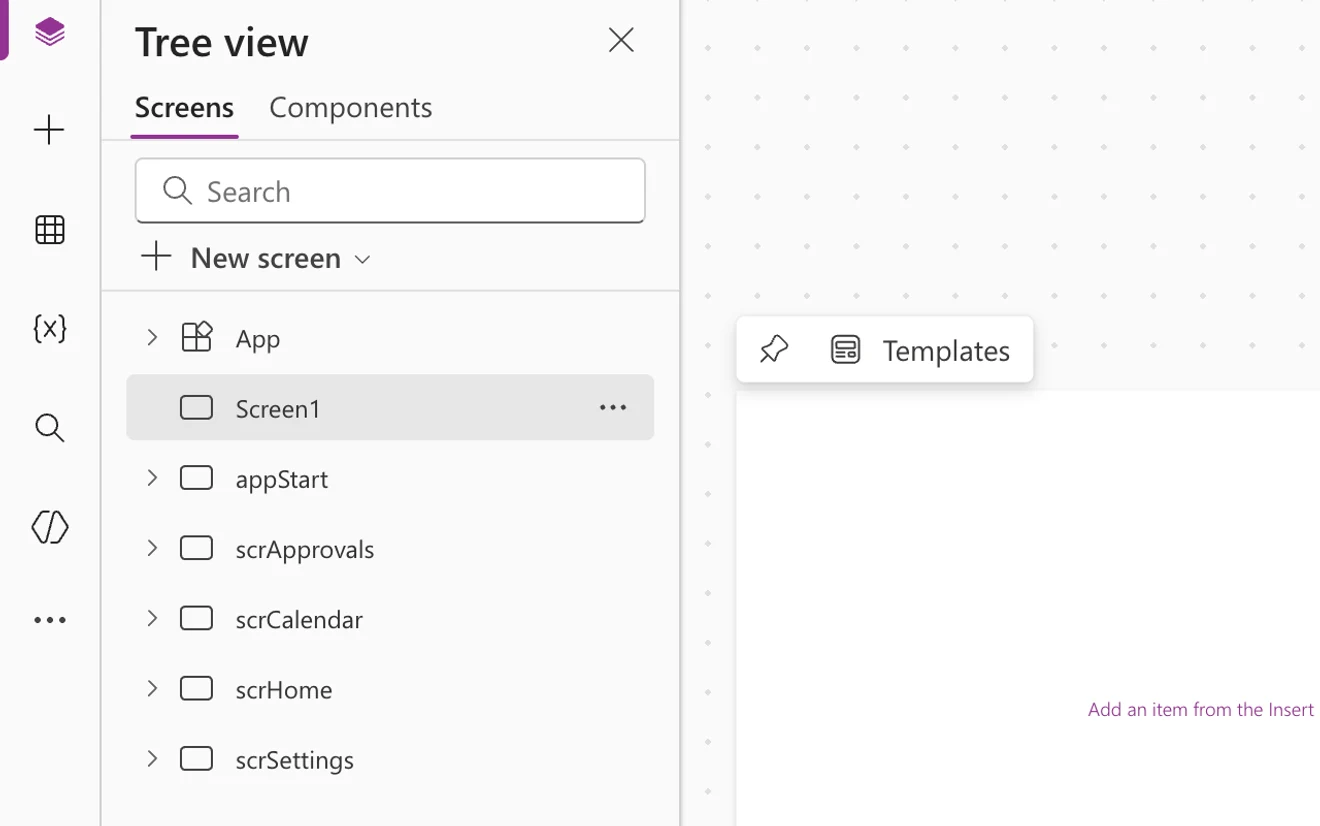
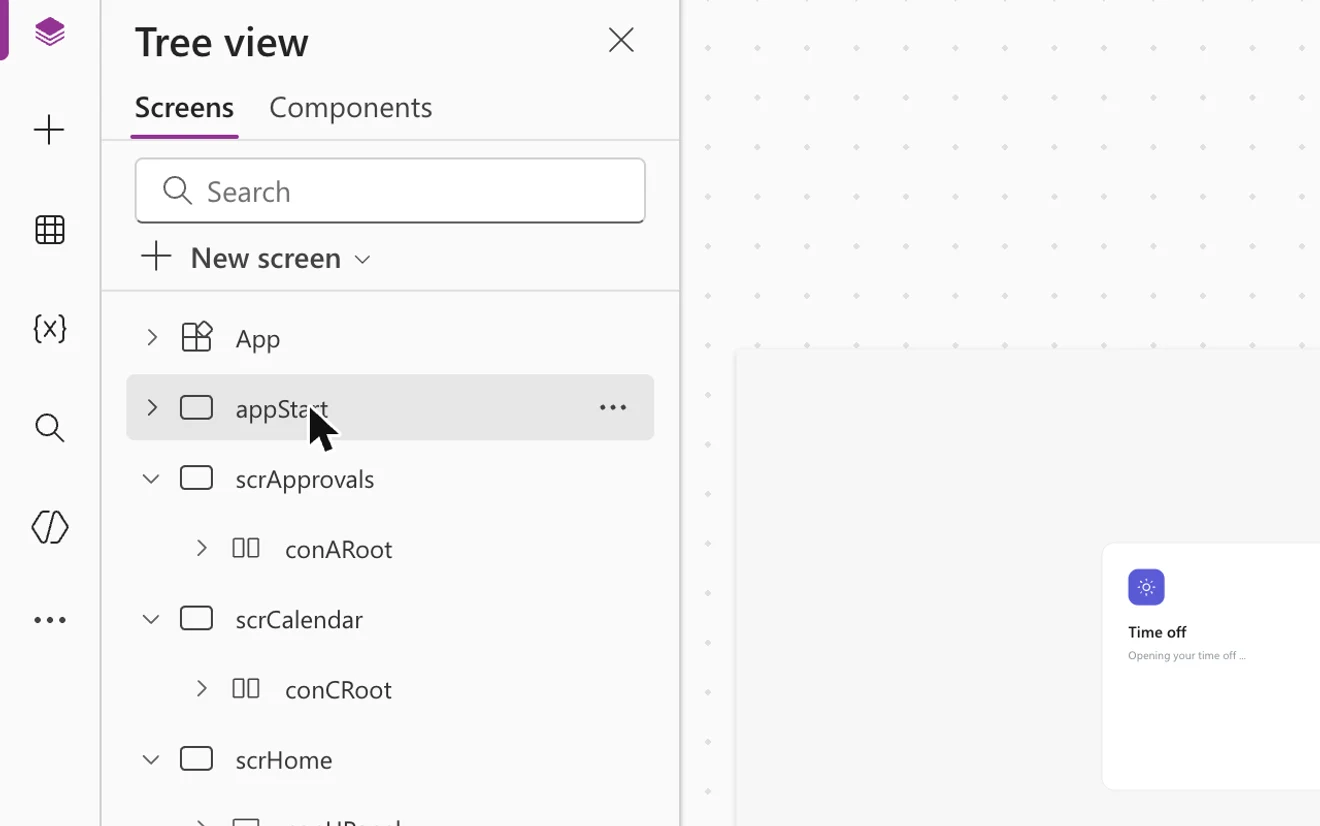
The Tree view shows appStart, scrApprovals, scrCalendar, scrHome and scrSettings, with appStart first.
Open it and add your team
The first person in becomes the admin.
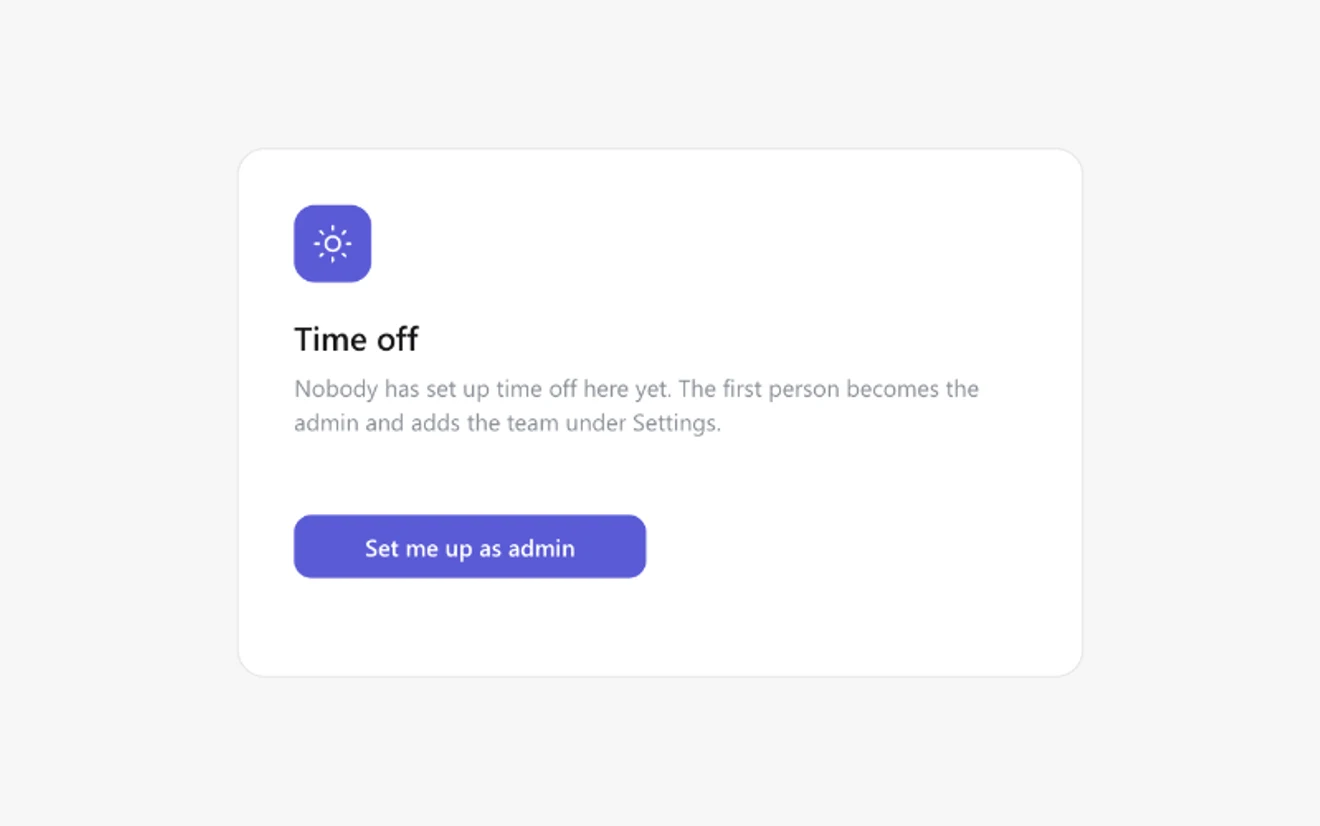
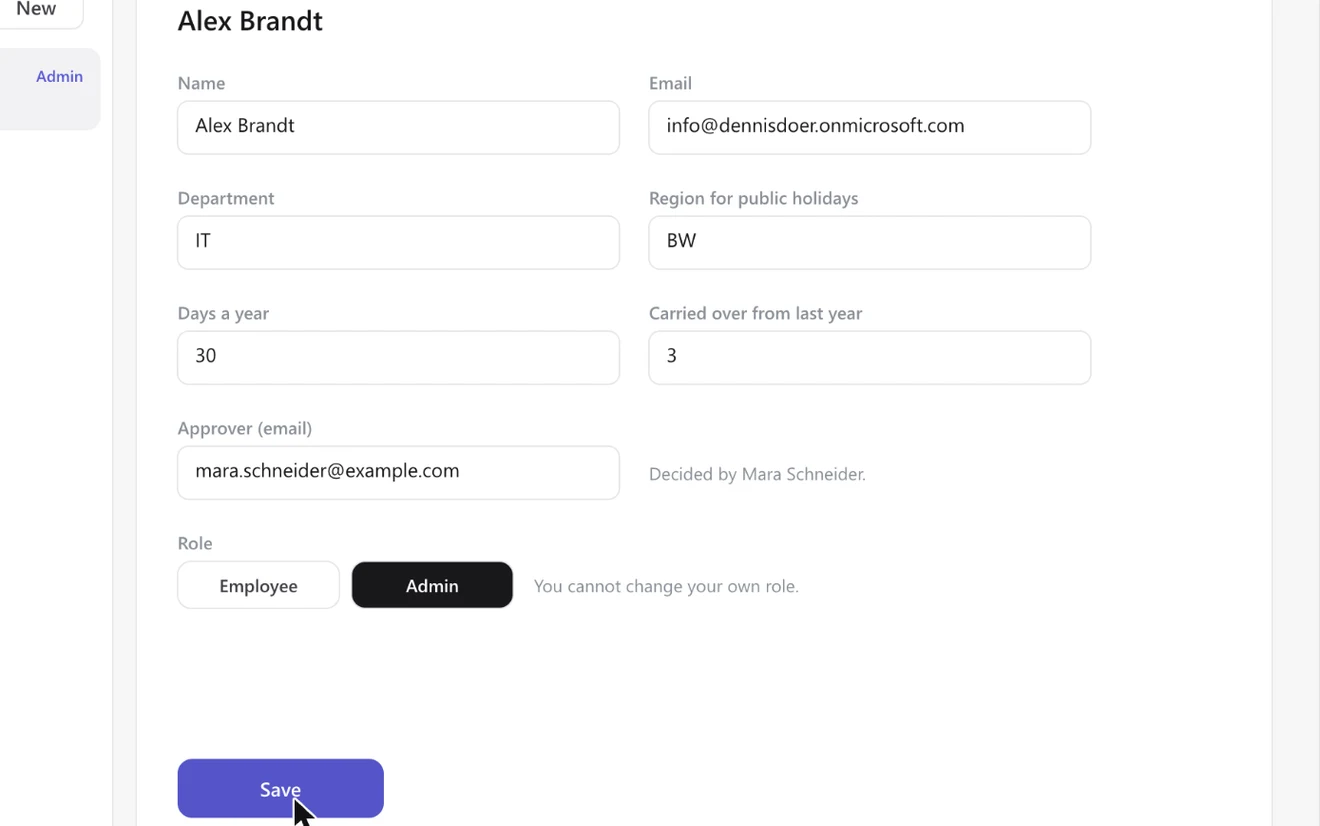
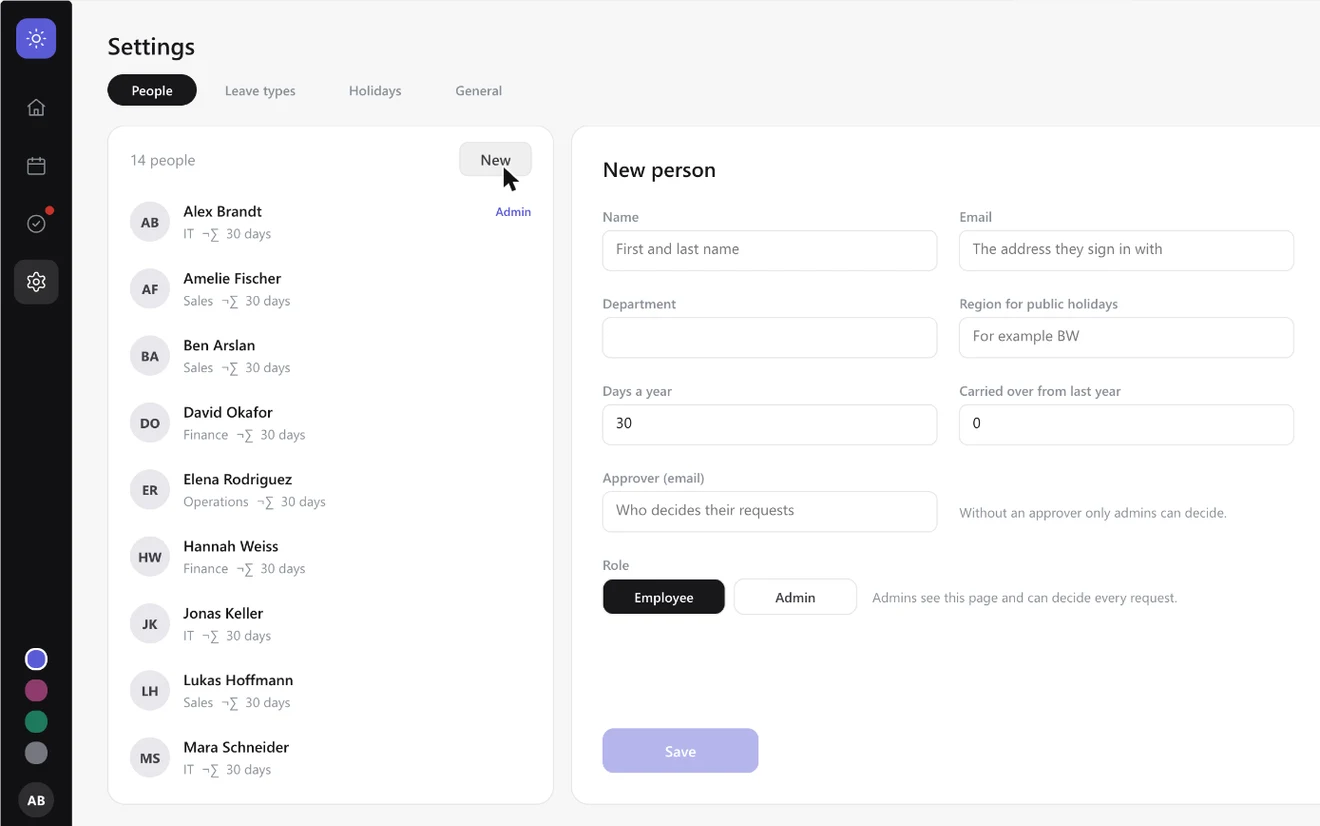
You are done when
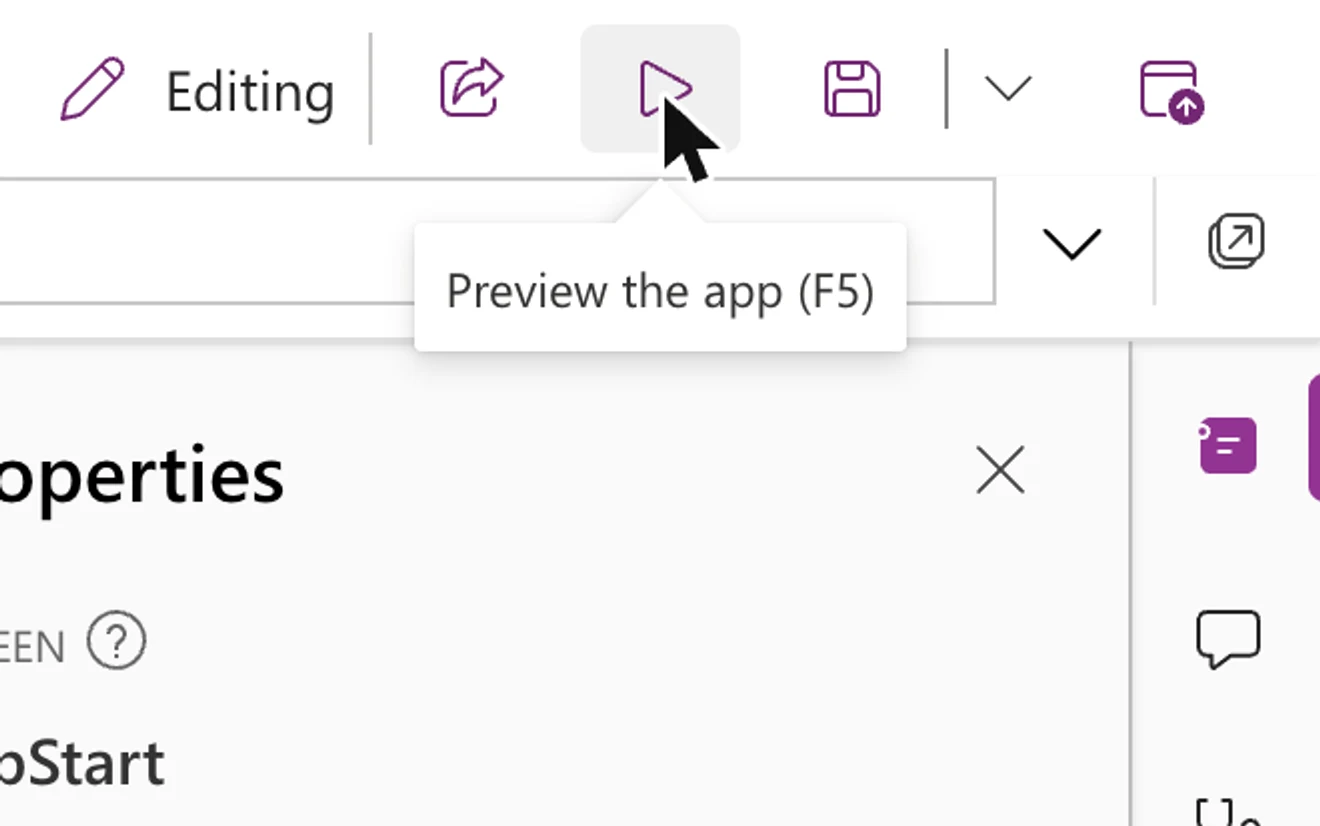
The bar on the left shows four icons. The first one opens your own page with your days left.
Publish and share
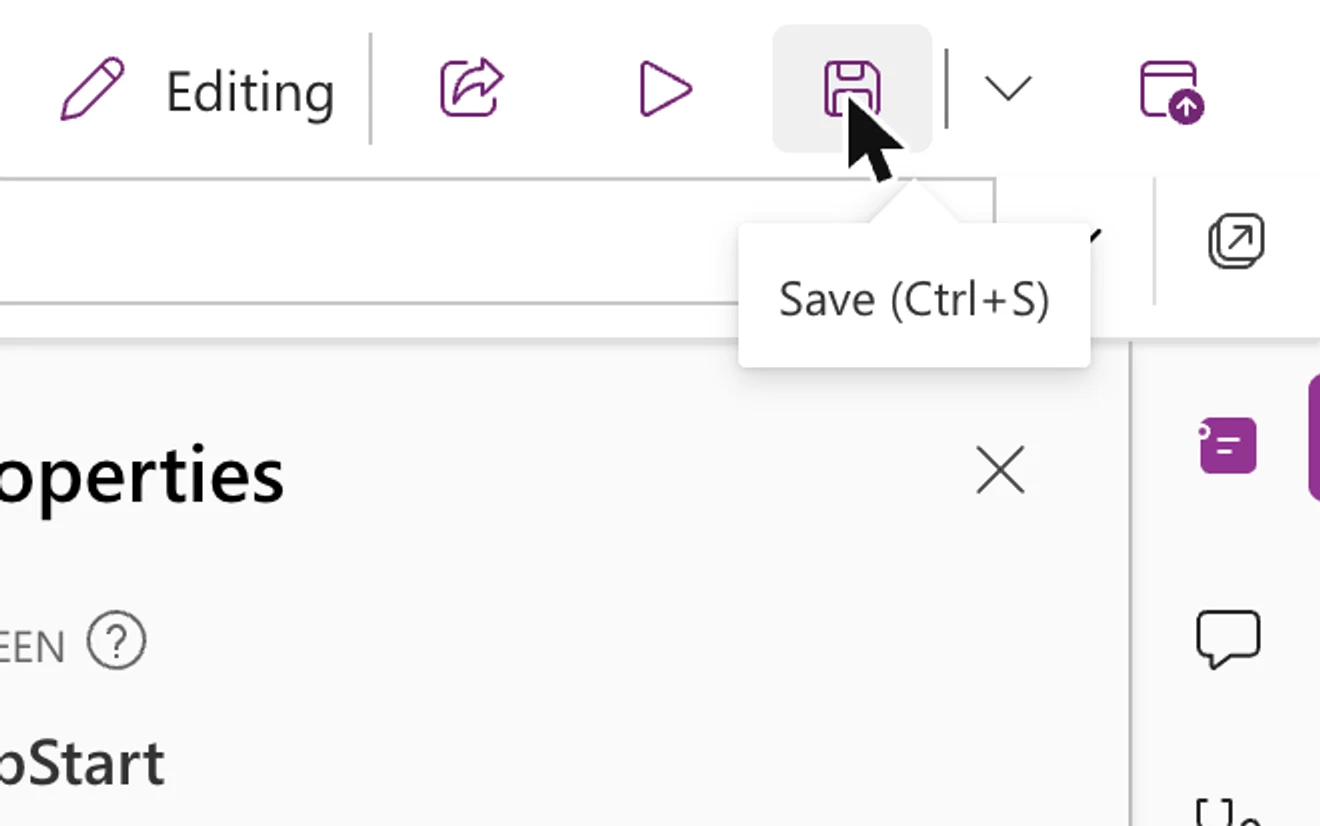
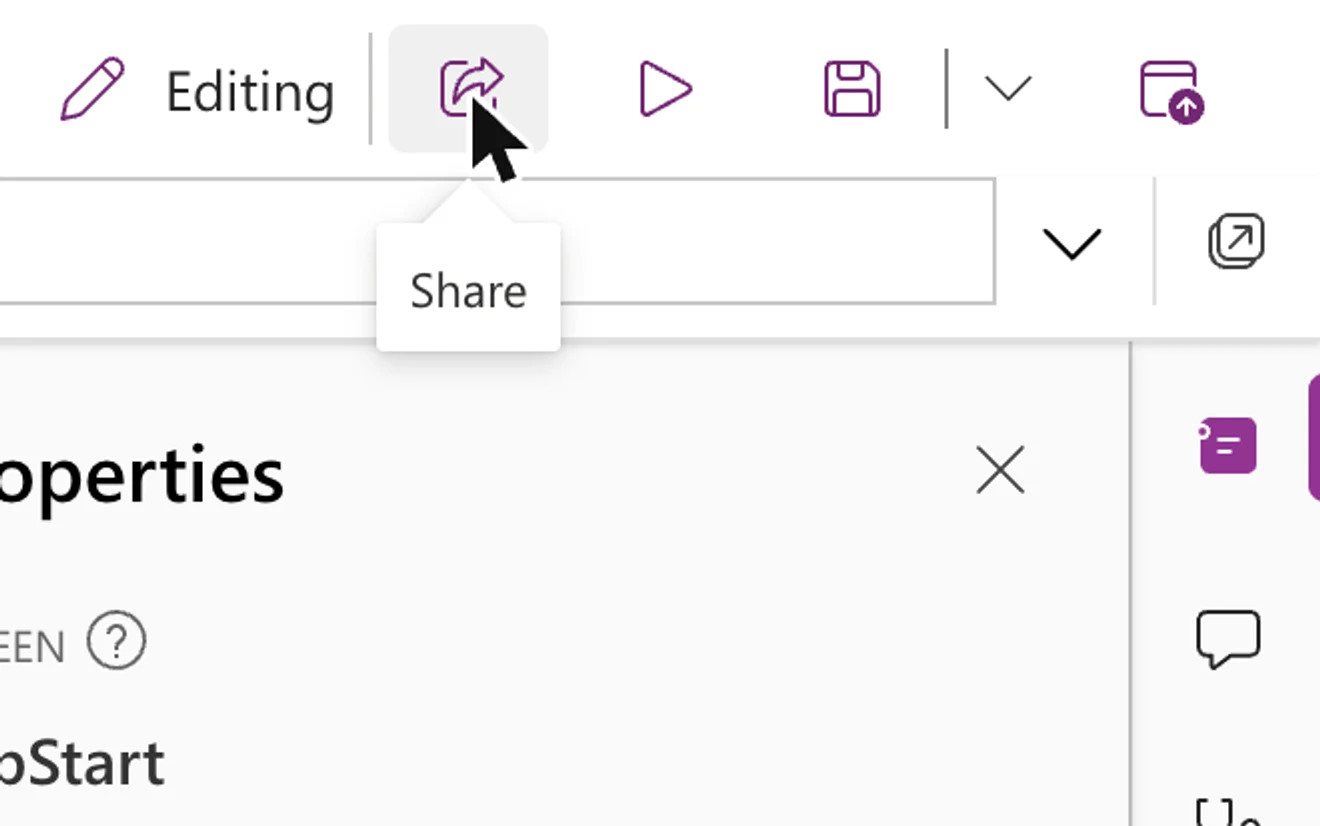
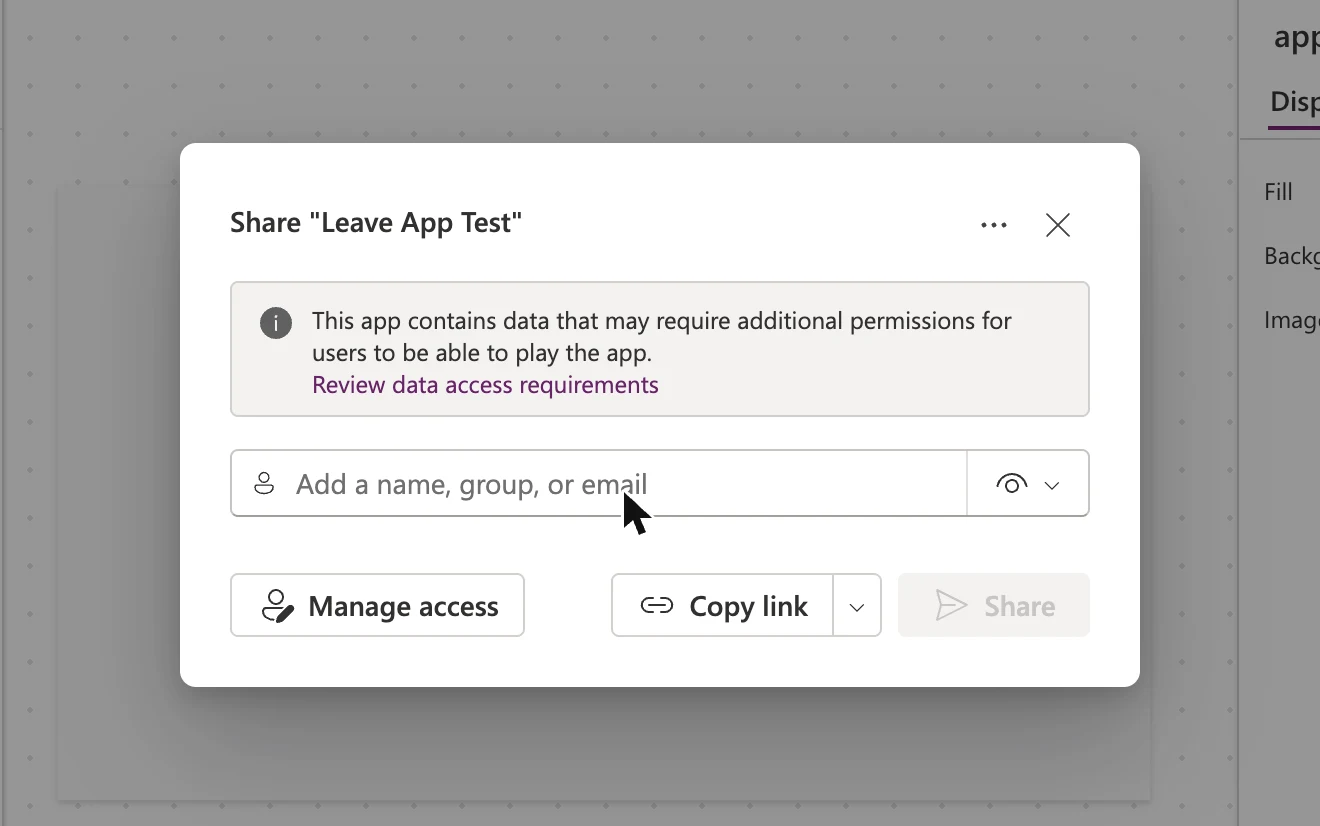
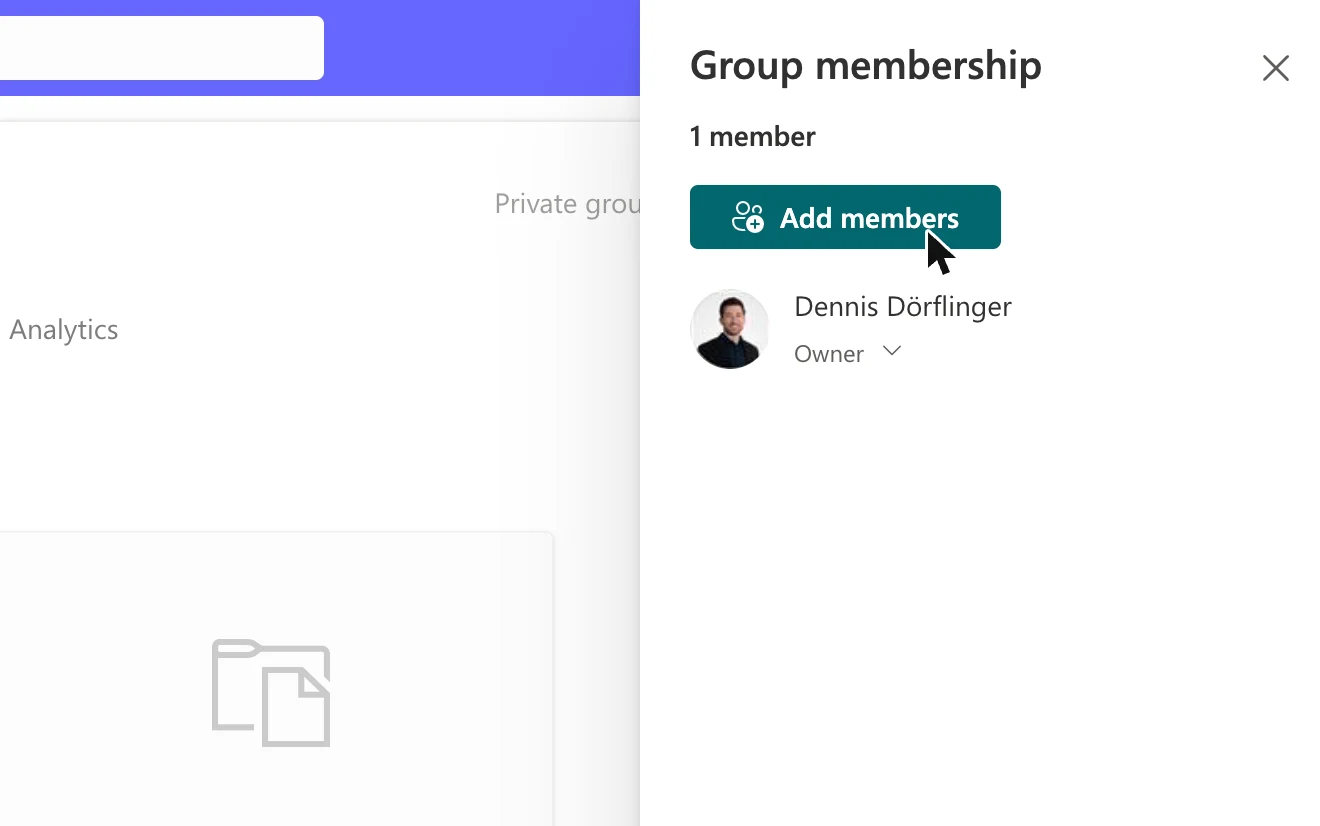
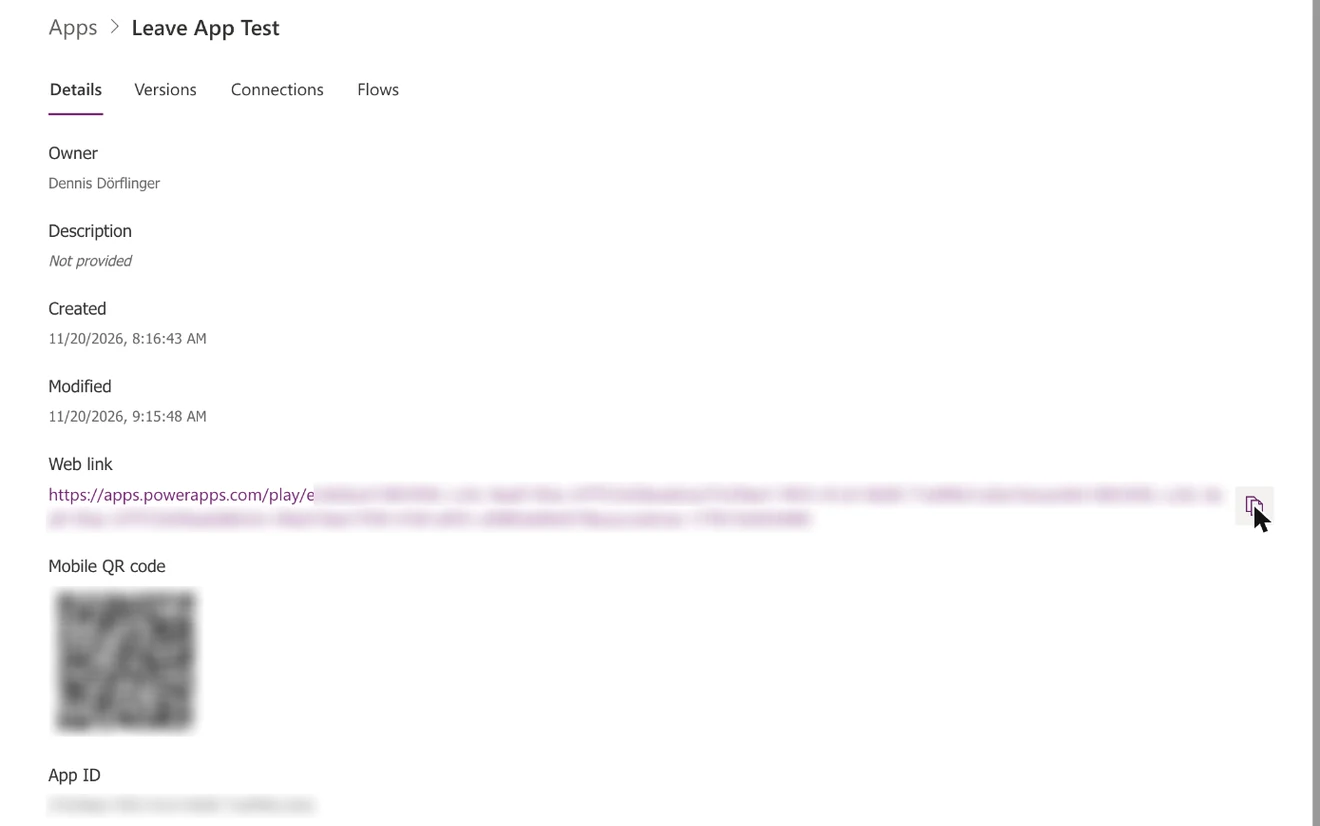
Publish, share the app and the lists, add the app link.
You are done when
A colleague who is on the people list opens the app and lands on their own page. Someone who is not on it is told which admin to ask.
Optional: e-mail notifications
Two small flows send the mails.
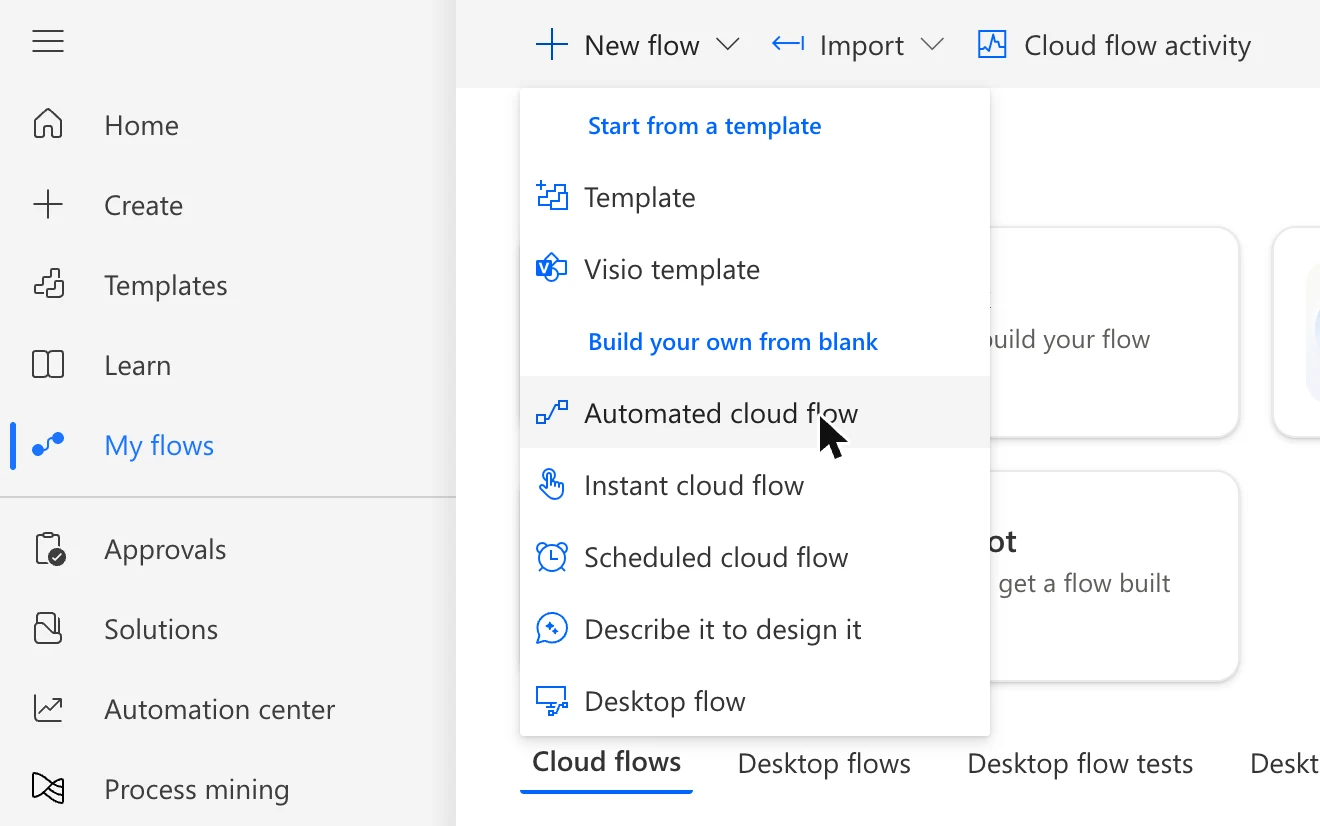
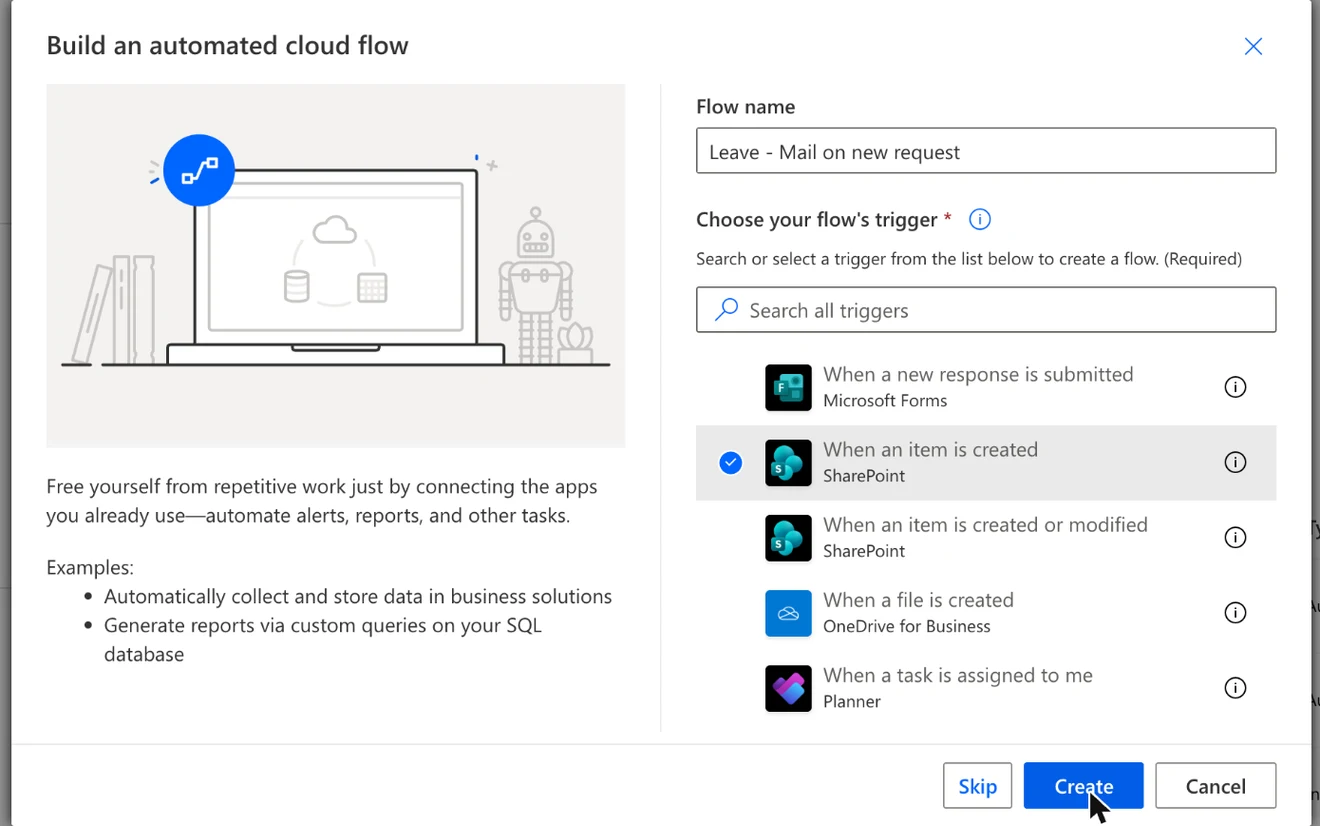
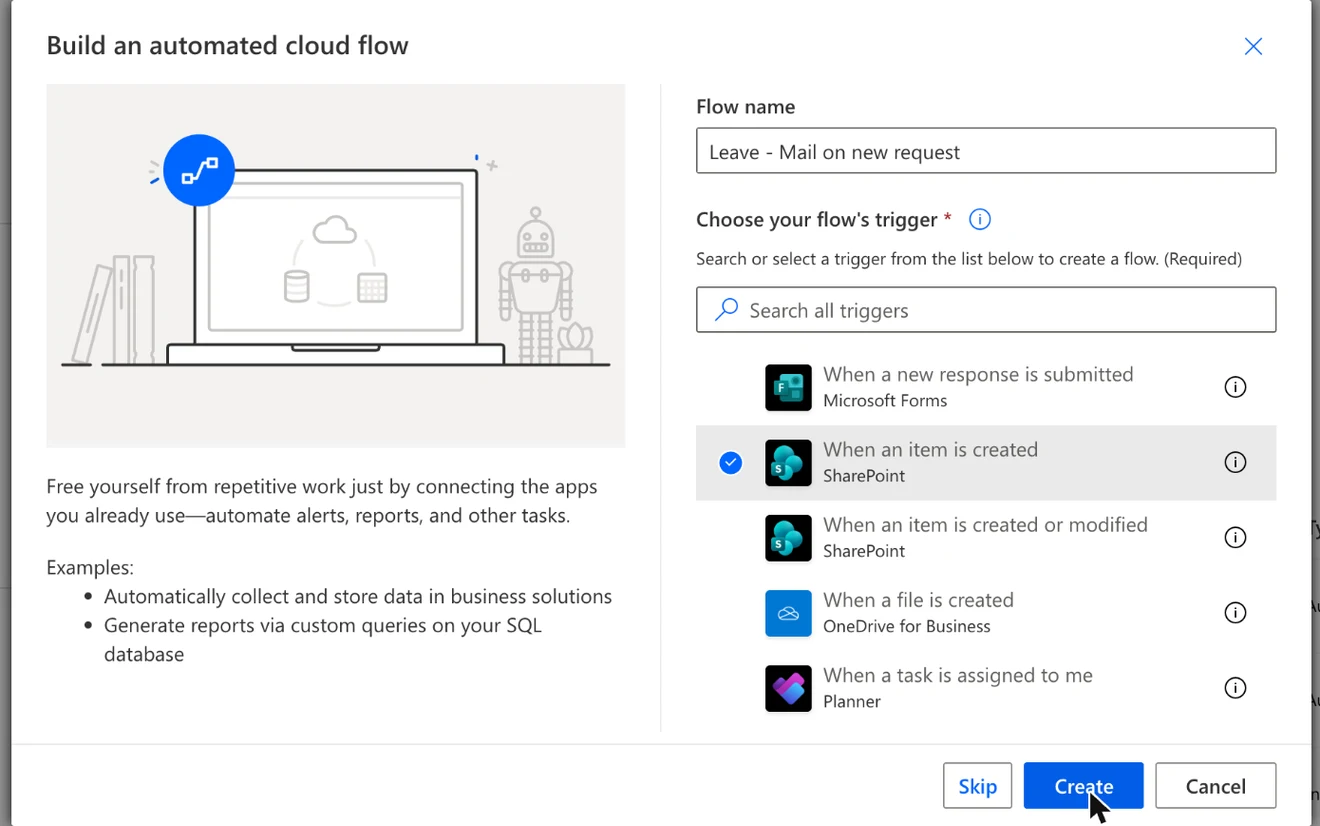
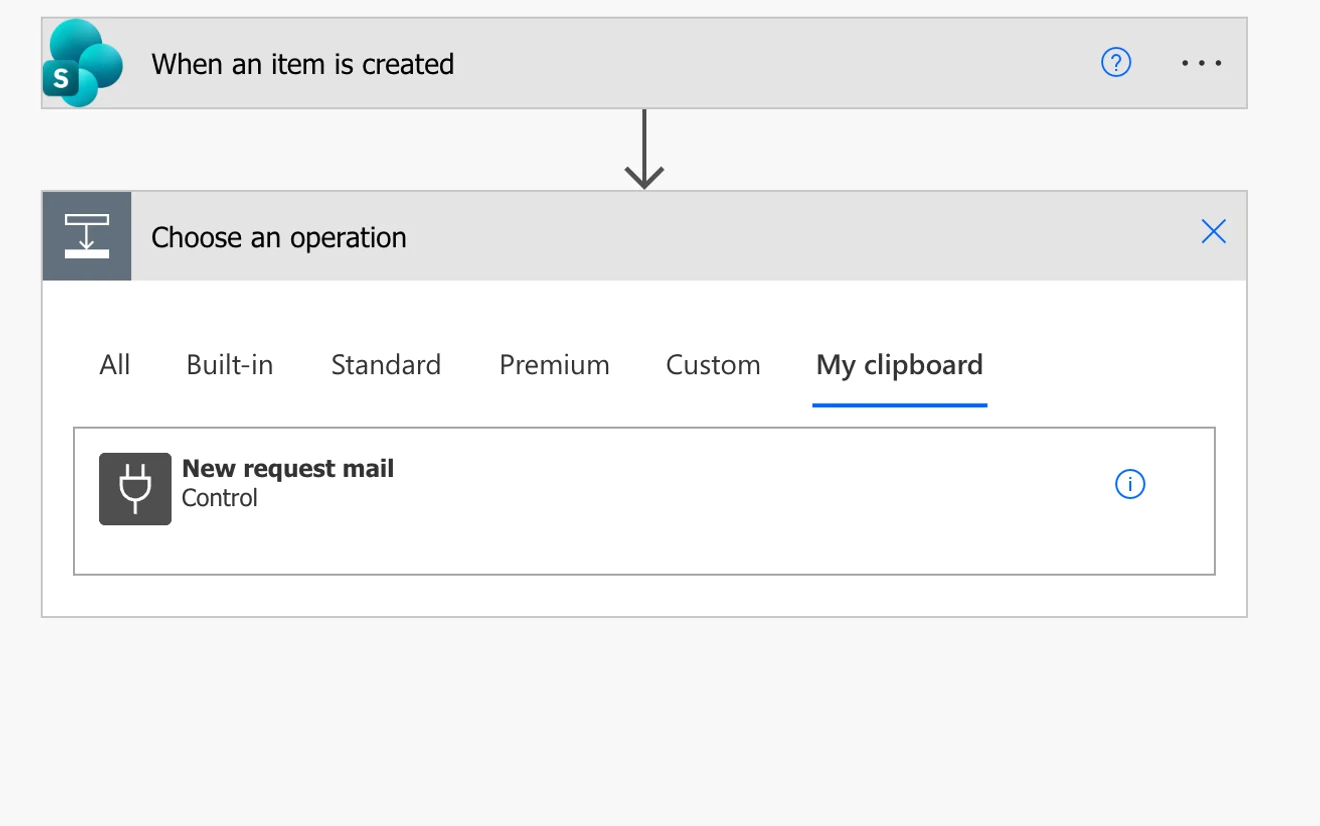
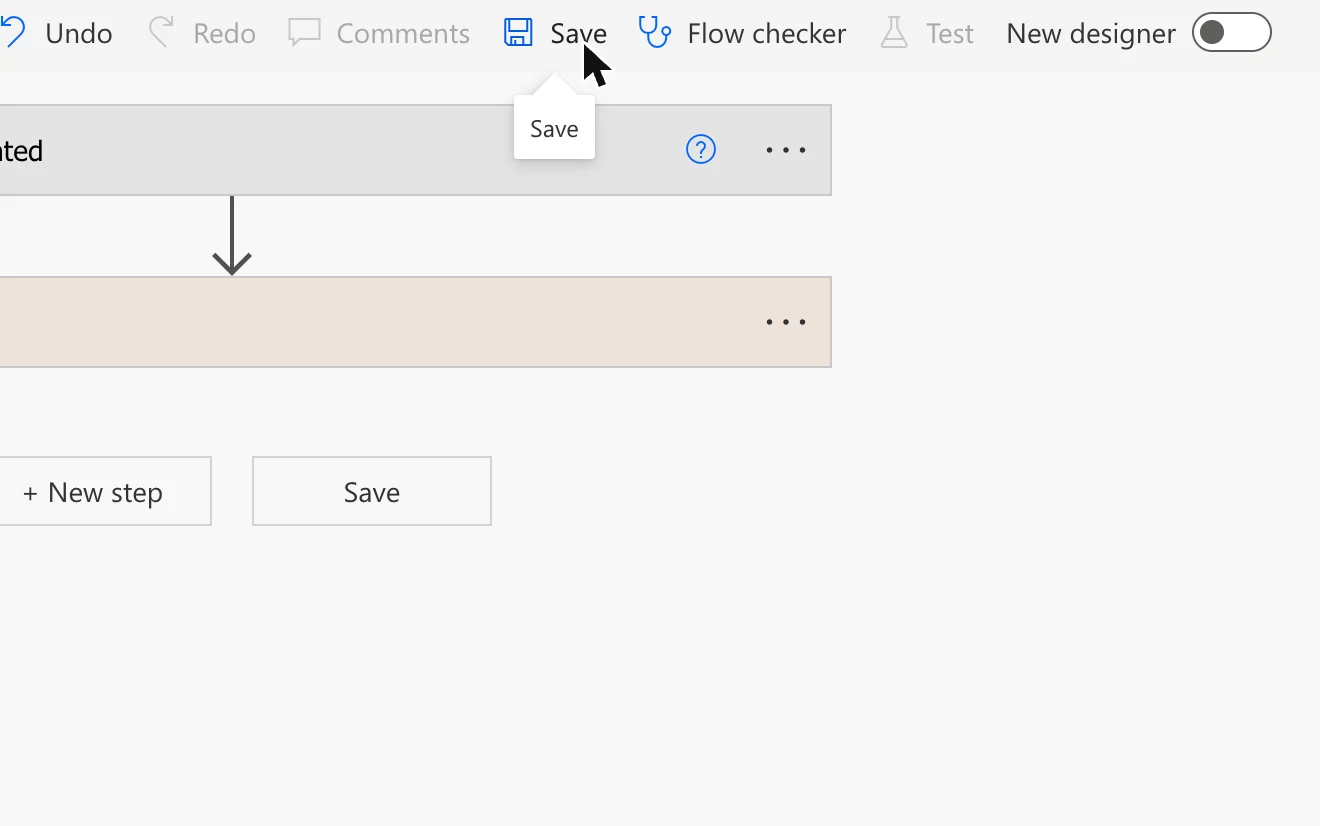
Tells the approver that a request is waiting. For a type that needs no approval, such as sick leave, the approver gets a short note instead.
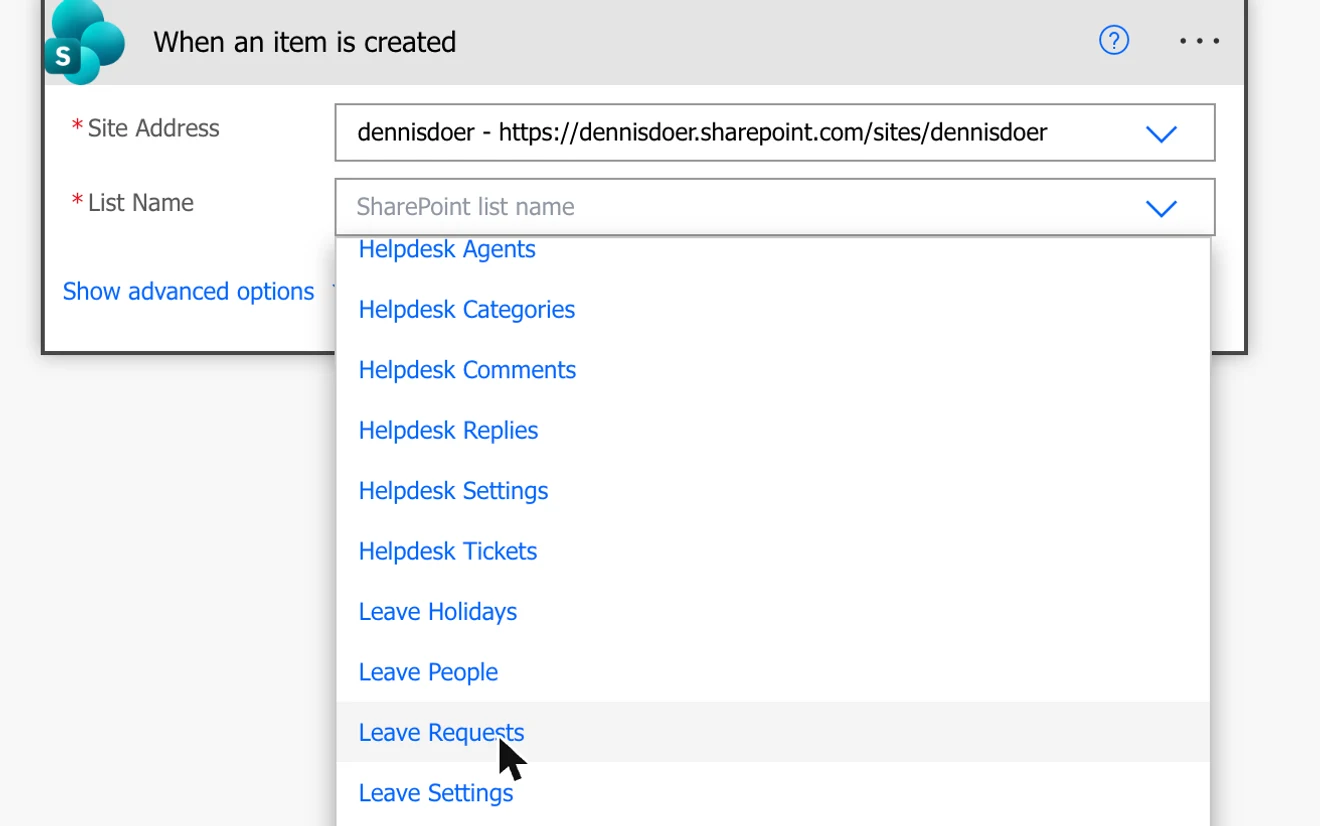
Automated cloud flow Leave - Mail on new request. Trigger When an item is created on Leave Requests.
Tells the requester that their request was approved or declined, and tells the approver when a request is cancelled.
Automated cloud flow Leave - Mail on decision. Trigger When an item is created or modified on Leave Requests.
You are done when
Both flows are saved and switched on. An approver gets a mail for a new request, and the requester gets one when it is decided. Mails are sent from the mailbox of the person who owns the flows. Wait a few minutes before the first try: a flow that was just switched on does not notice requests made in its first minutes.

Set it up with your AI
Connect PowerLibs MCP to Claude, ChatGPT or your editor. It knows every step, the lists and the flows. Then say:
Help me set up the PowerLibs Leave Request app, one step at a time.
If something goes wrong
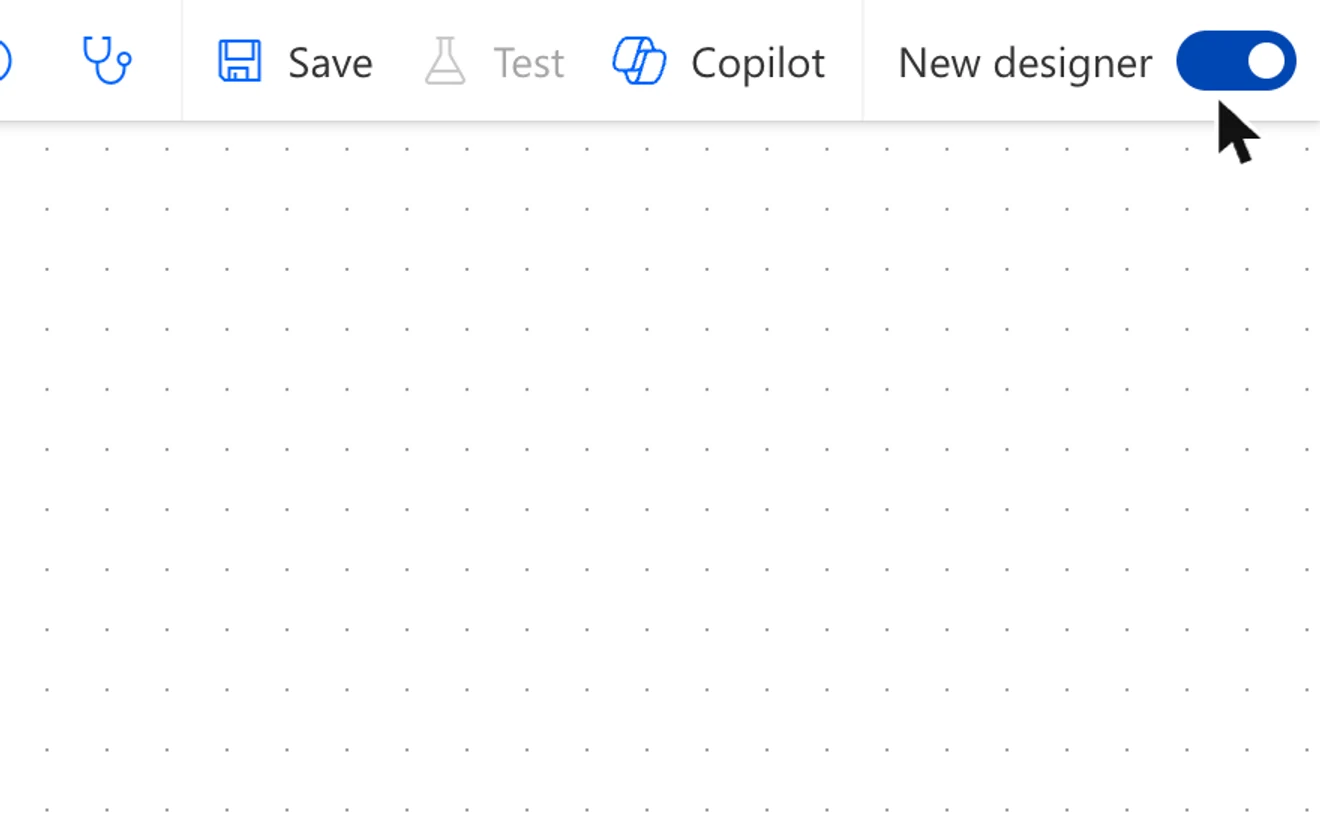
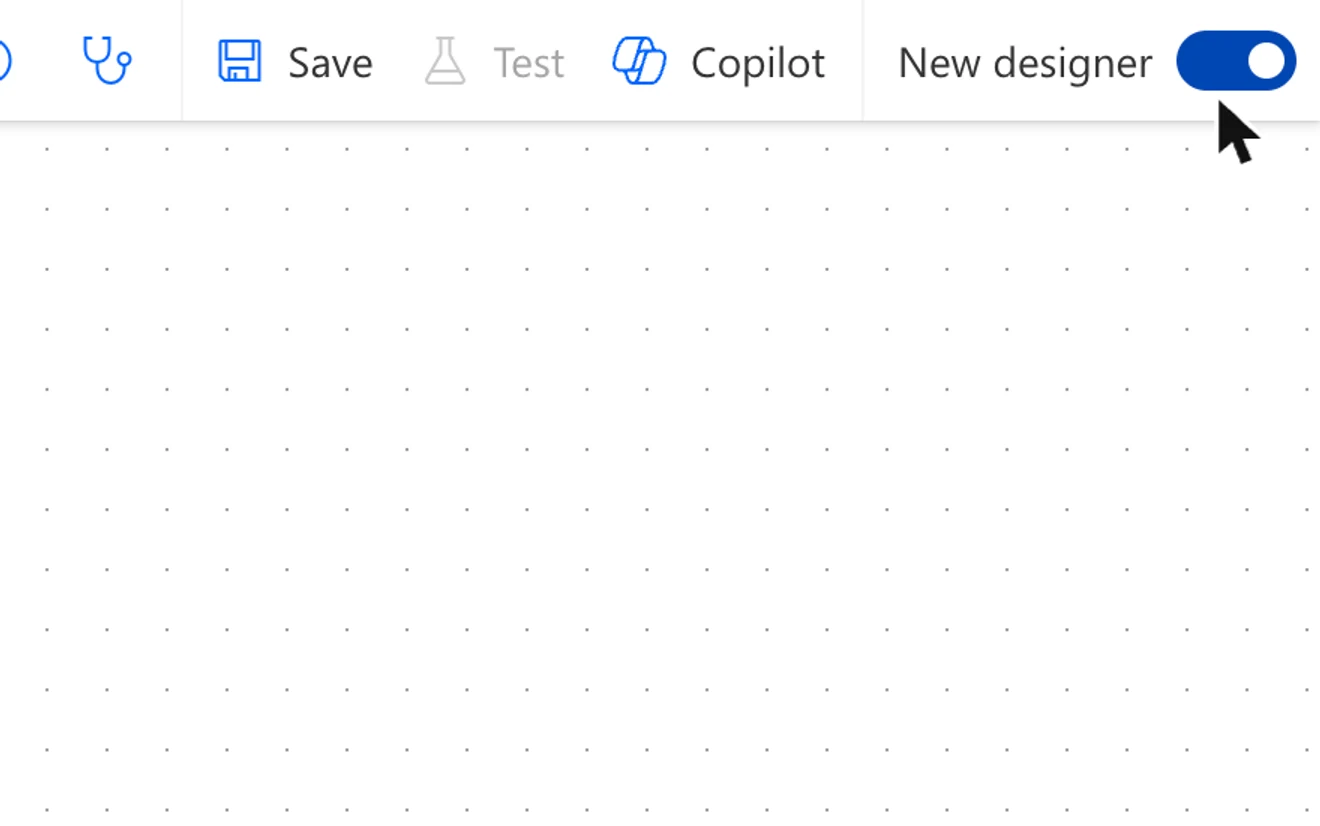
There is no My clipboard tab in the flow
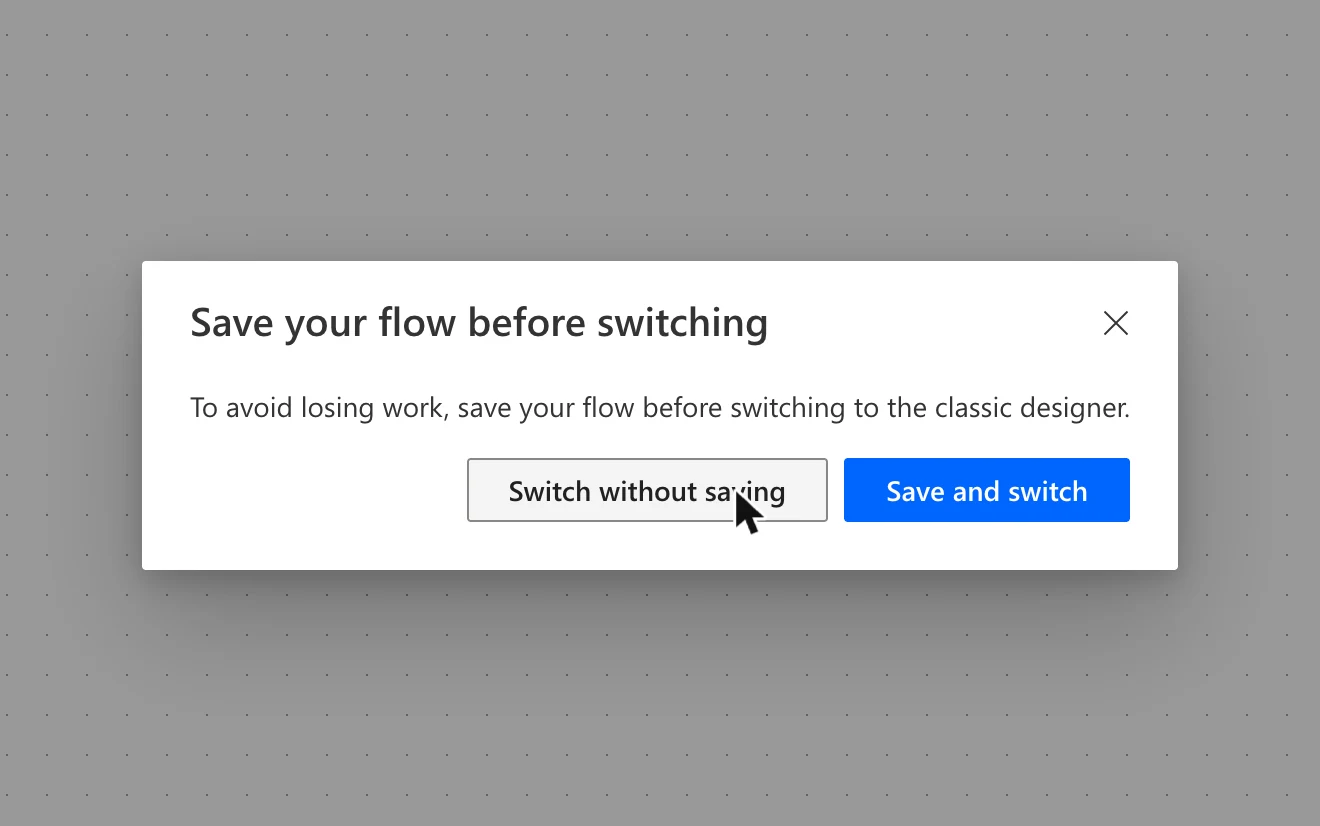
The flow is open in the new designer. Turn off the New designer switch, choose Switch without saving, then press New step again.
The page freezes after Switch without saving
Reload, create the flow again and change v3=true to v3=false at the end of the address in the browser. That opens the classic designer directly.
Nothing happens after Ctrl + V in the flow
Press the Copy button again and paste right away, on the My clipboard tab.
A flow step says Invalid connection
Open the step and pick or create your SharePoint (or Outlook) connection.
Formulas in Studio are red after pasting
One of the five lists is missing under Data, or the lists have another name prefix than the app was copied with.
Paste does nothing in Studio
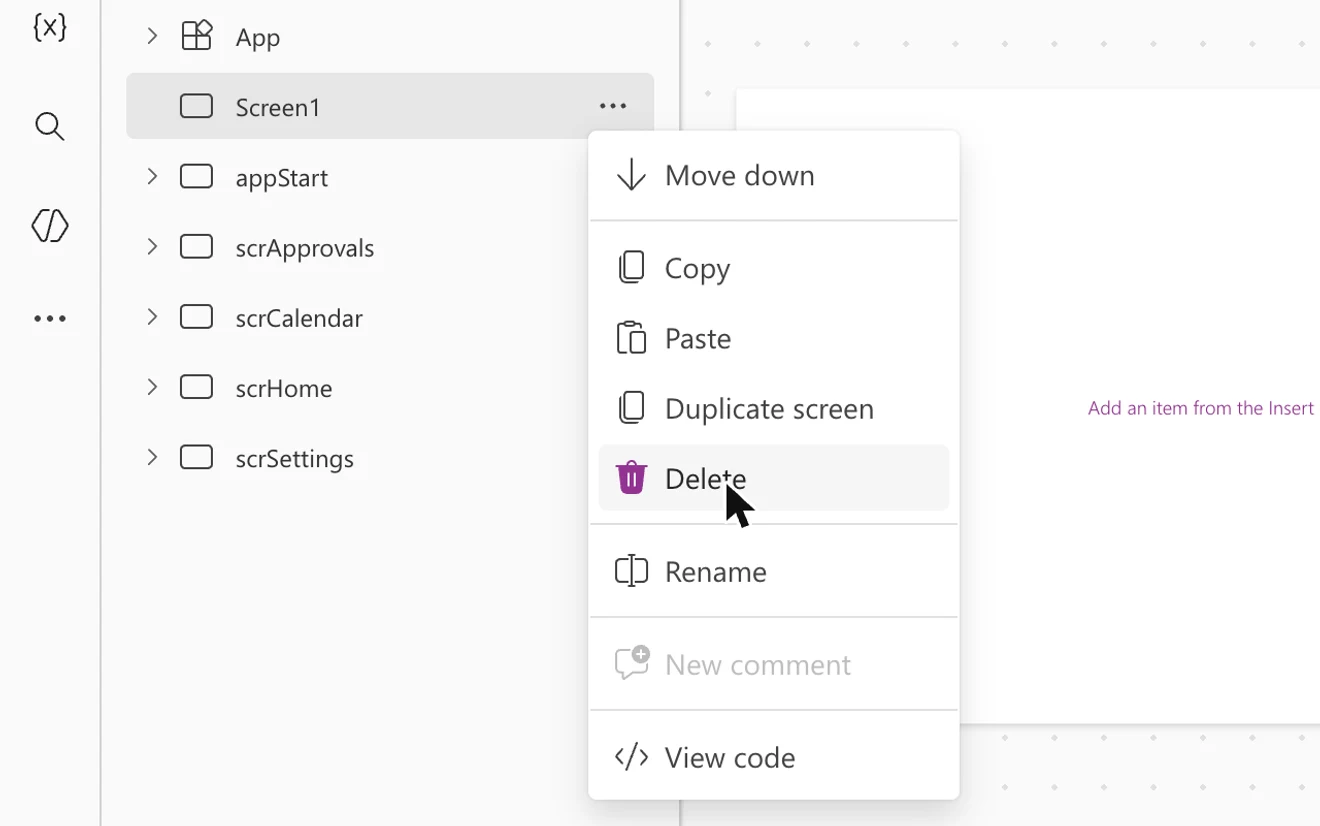
Use Paste in the ... menu of a screen in the Tree view instead of Ctrl + V. It shows the reason when a paste fails.
The app opens on an empty white screen
Screen1 is still the first screen. Delete it so appStart is first.
The start screen says you are not on the list
The setup only shows while Leave People is empty. Ask the admin named there to add you.
A change made in SharePoint does not show in the app
Click the logo at the top of the bar on the left. It reads everything again.
No mail arrives
Wait a few minutes after switching a flow on, then make a new request. Check that the person has an approver other than themselves. Nobody gets a mail about their own action.
The working days of a request look too high
Add the holidays of that person's region under Settings, Holidays. Leave Holidays starts empty.
A colleague cannot save anything
They need edit rights on the lists, not only on the app.
Good to know
- Who may use the app is the list Leave People: one row per person with their days a year, their approver and their region. The first person who sets the app up is the admin.
- Nothing stores a balance. Days left is counted from the requests each time, per calendar year. Carried-over days are a number per person and do not expire by themselves.
- Working days leave out weekends and the holidays of the person's region. Half days work on the first and the last day.
- Colleagues only see that someone is away, not why. Everyone needs edit rights on the lists, though, so they could read Leave Requests in SharePoint.
- Layout: built for 1366 x 768, no phone layout. The app is in English.
- Beta: built and tested in one Microsoft 365 tenant so far, with one account, an admin.
Leave Request App: Complete App (Beta)
ULTRANEWCreate a free account
Copy any of the 14 free components. The rest come with a plan.
Already a customer? Sign in with the email you bought with. A different email starts a new, free account.
- Every full app for 1 year, this one included
- All 187 components, yours forever
- New components for 1 year
What users say
“I was able to create a requested feature while still on the phone with management so they could view the result in real time.”
“PowerLibs components are clean, professional, and save me hours of development time.”
“Both saved me a tremendous amount of time since I didn't need to build reusable components from scratch.”